Inventory
Track parts, tires, batteries, fluids, vendors, purchase orders, and returns — from the shelf to the repair order.
The Inventory page is your stock workspace on one screen. All Inventory always includes every product family. Shops can additionally enable focused Tires, Batteries, and Fluids & Supplies workspaces without creating separate stock ledgers or purchasing systems.
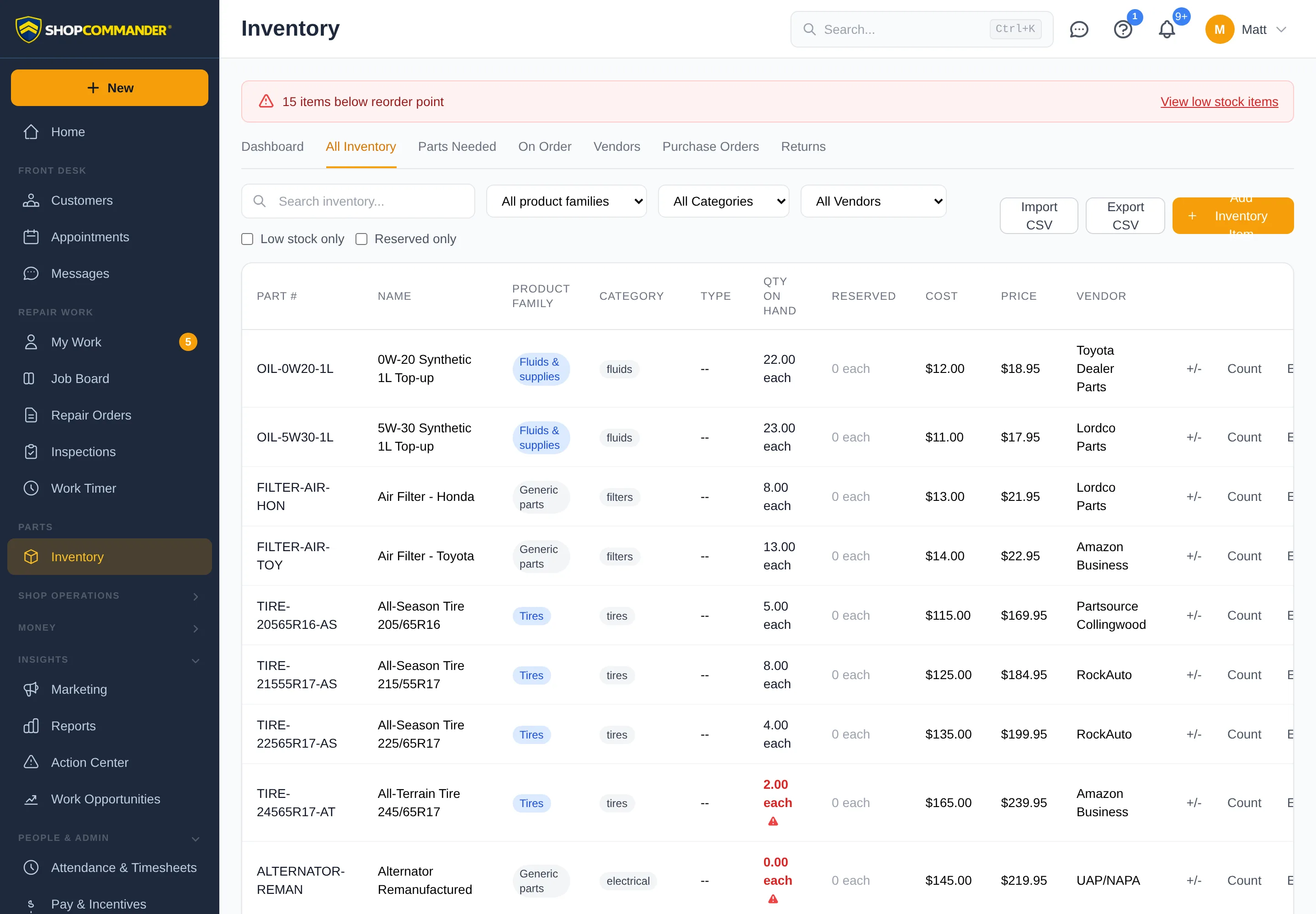
Dashboard
The Dashboard tab gives you the numbers that matter at a glance — parts needed, low stock count, and vendor credits. Anywhere on the page, a red banner warns you when items drop below their reorder point, with a one-click jump to the low stock list.
All Inventory
Use Product family to show generic parts, tires, batteries, or fluids and supplies. Universal search covers SKU, description, brand, model/profile identity, vendor, and shelf location. Click Add Inventory Item for an ordinary generic SKU, or use a visible family workspace for its structured create form. Fractional units use the item's declared stocking UOM and the current maximum of two decimals. After creation, catalog fields stay editable but the count itself only changes through posted stock movements, so every quantity always has a paper trail.
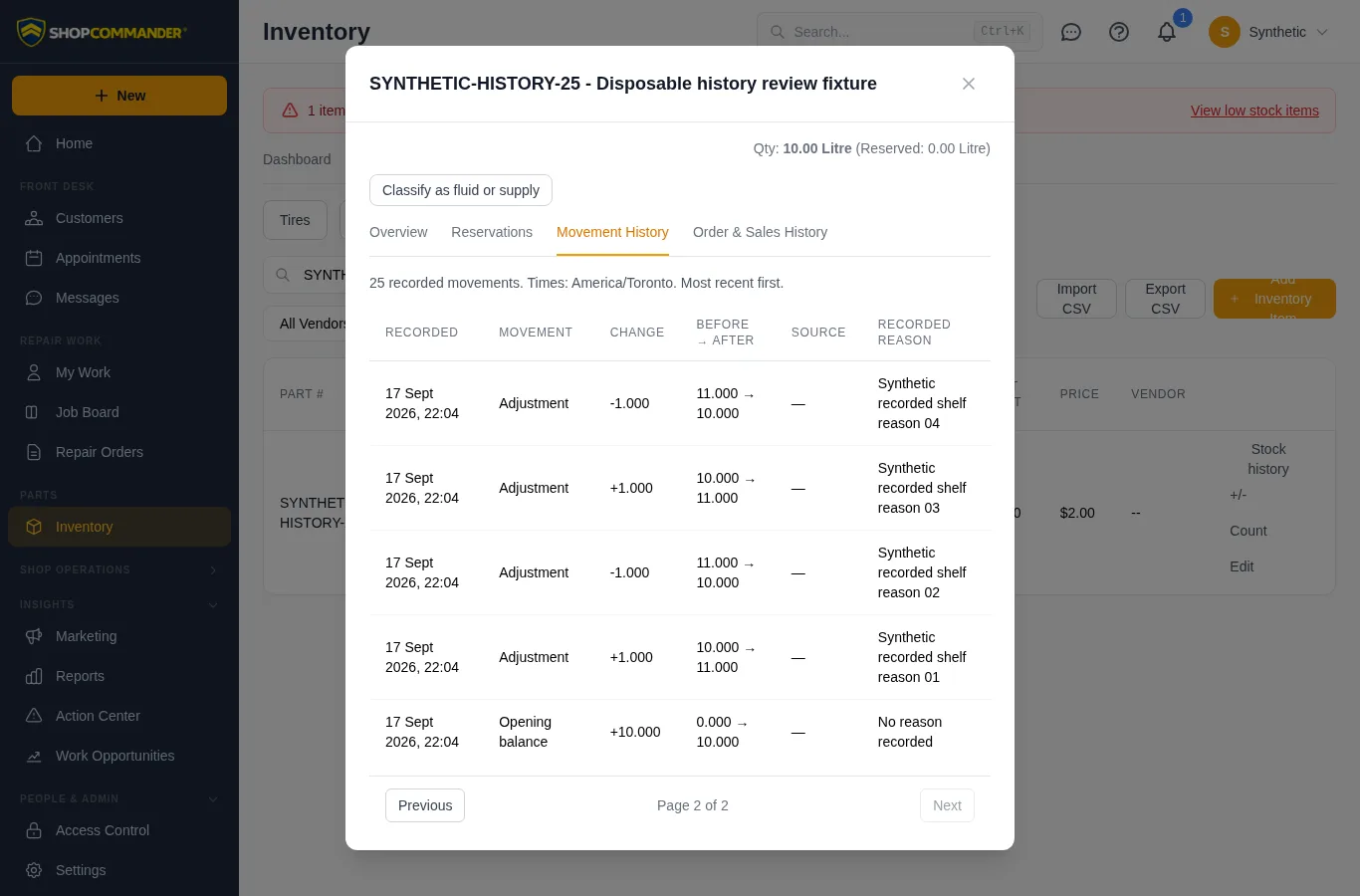
Use Stock history on an inventory row to review recorded stock movements directly. View details or clicking the row opens its detail view with four tabs:
- Overview — cost, price, margin, location, reorder point, and warranty terms.
- Reservations — current stock held for repair orders.
- Movement History — recorded movement type, quantity change, before/after quantities, reason, source and shop-local time. Use Previous/Next to reach older entries; the total count is shown. A missing operator note says No reason recorded.
- Order & Sales History — which POs brought it in and which repair orders it went out on.
History load failures show an explanation and a retry action. All Inventory and Fluids & Supplies use the same unit names, such as Litre; labels do not convert quantities.
Need to correct a count? Use +/- to post a reasoned adjustment, or Count to enter what's physically on the shelf — the variance posts automatically and the movement history explains it. The unchanged generic Import CSV accepts generic inventory only. Family workspaces provide versioned tire, battery, and fluid templates with dry-run preview and row-level errors. Opening quantities for new rows become posted movements; quantity on an existing row is ignored and must be changed with Count or Adjust Stock. Export CSV keeps the existing generic export columns, including UOM and precision.
Structured profiles are append-only and versioned. Converting an existing SKU to or from a product family is an explicit audited command; editing an ordinary field never converts it. The inventory ID, movements, reservations, purchasing, returns, and repair-order links remain unchanged, and historical transactions keep the profile/family snapshot they recorded at posting.
Battery compatibility and tire fitment are shown as unavailable—not guessed—until that shop configures an approved authoritative source. A shop-managed tire catalog can support exact fitment and quote rules; this is not a global live catalog or universal distributor feed. Supplier offers are time-bound observations, not owned stock. Package information on a fluid is descriptive and never silently converts stock quantities.
Add a typed product
Choose the visible family workspace and use its structured create action. Supply only known required identity: a deterministic tire size/season and product identity, declared automotive battery fields, or fluid/supply stocking UOM and precision. Draft/incomplete state stays non-stockable where the current form permits it; the product never invents fitment, ratings, chemistry, UOM, or package conversion.
Parts Needed
Every part marked Needed on a repair order lands here, grouped by vendor. Copy a vendor's list to your clipboard for a quick phone order, mark parts ordered with tracking numbers, or hit Create PO to turn the whole group into a purchase order in one step.
On Order
Everything you're waiting on, in one list. When the delivery arrives, receive the actual quantities through the PO receiving workflow. A receipt posts the stock movement and updates linked repair-order material state. A supplier offer, order acknowledgement, or tracking number does not change on-hand quantity.
Vendors
Keep vendor profiles with contact info, account numbers, payment terms, sales rep details, and default lead times. Filter your parts list by vendor with one click.
The dashboard’s Parts Needed count uses the same selection as the Parts Needed worklist: needed and ordered parts, excluding hidden, declined and deferred work. Parts on Order is a separate ordered-parts view, so the two counts should not be added together.
Purchase Orders
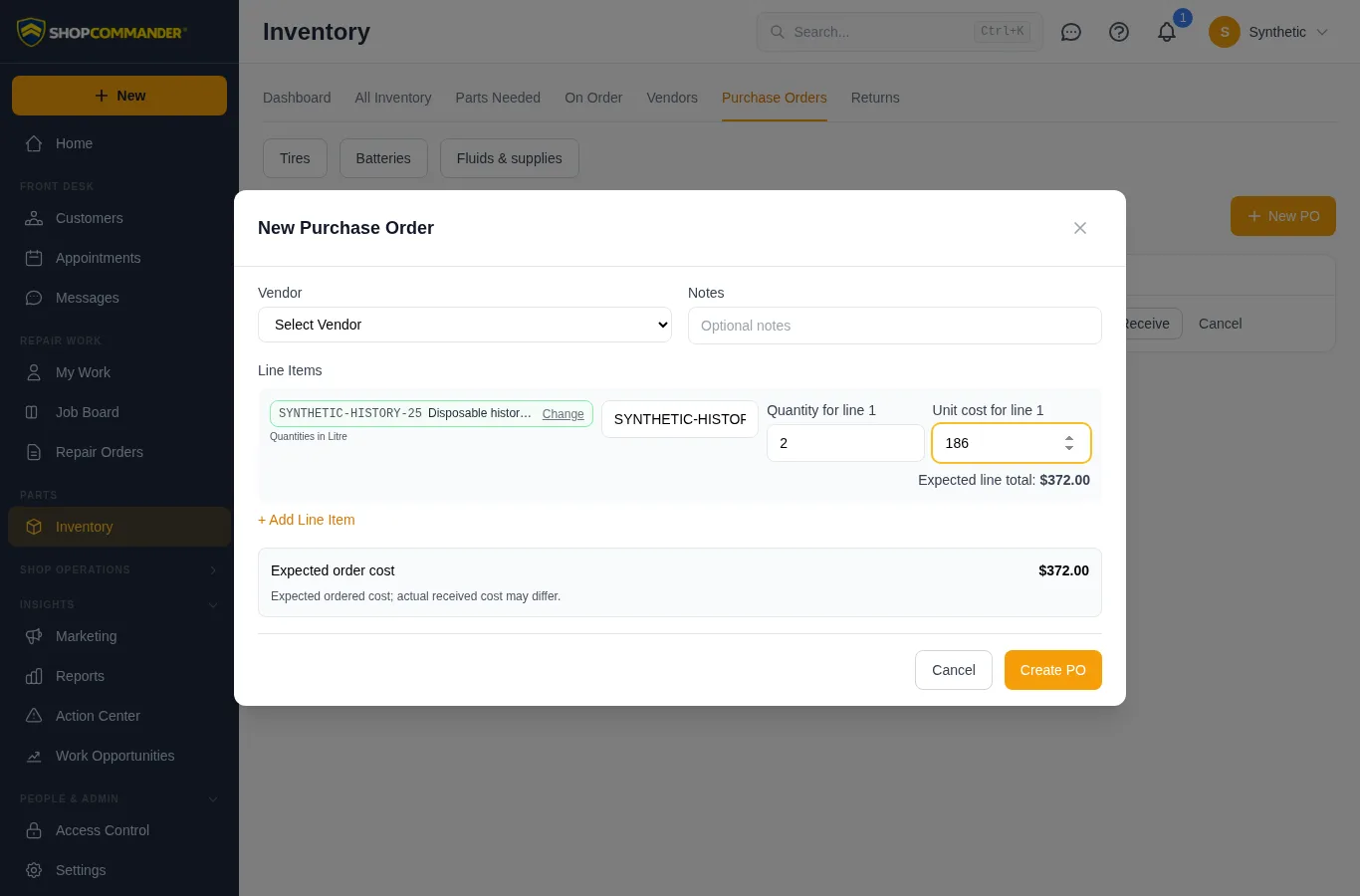
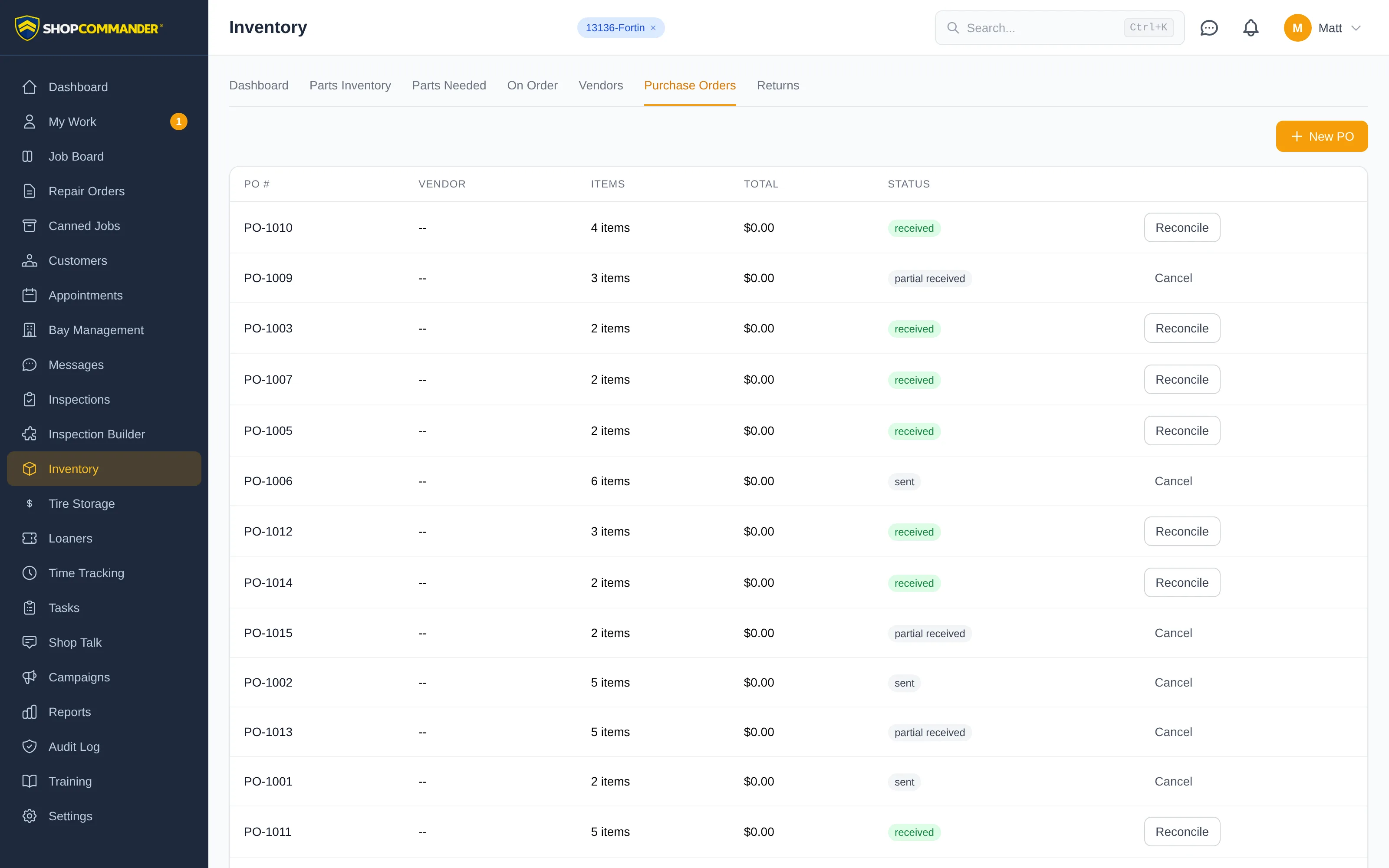
Click New PO to build a purchase order line by line, searching your inventory as you type. POs move from Draft through Submitted to Received, and the receiving screen tracks ordered, previously received, and remaining quantities plus actual cost — so short shipments and cost changes don't slip past you. Short-shipped? Backorder moves the outstanding remainder to a linked follow-up PO in one step.
The New Purchase Order dialog shows Expected line total and Expected order cost before creation. These amounts use the same calculation as the saved order. Changing a line clears the previous total while the new amount is calculated. If the preview is unavailable, your draft stays open and Retry expected total retrieves it again; an unavailable amount is shown as a dash, not zero. Expected cost describes the quantity ordered; actual received cost can differ. Each order supports up to 200 lines.
Returns
Defective part or wrong shipment? Use New Return, select the actual linked SKU/quantity and reason, then move the return through its current create, ship, received/refund/credit states. A return changes stock only through its recorded transaction and keeps the RMA/tracking/settlement history; deleting the row is not a correction path.
Tire Inventory versus Tire Storage
Tire Inventory is shop-owned merchandise on this ledger. Tire Storage is customer-owned seasonal property held in custody and has no inventory balance, purchase order, cost, or sell-price authority. See Tire Storage.
Next: Canned Jobs — the service templates that put these parts to work.
Family CSV preview and import
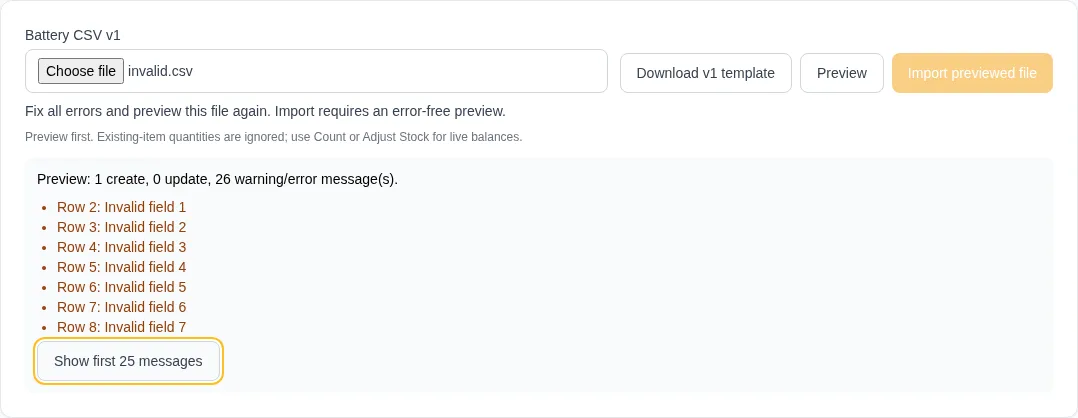
Battery, tire and fluid/supply imports use their own downloadable templates. Add one row per part number, select the file, then Preview. Import previewed file is available only after an error-free preview of that same file with at least one row to apply. The explanation beside the button tells you whether to select a file, preview, fix errors or wait for the current request. The action does not offer to apply only the good rows of an invalid preview.
Independent numeric and profile faults are reported together for each invalid row. For existing items, preview includes the warning that CSV quantities will be ignored; use Count or Adjust Stock to change an existing balance. Duplicate part numbers are rejected before stock changes. Use Show all messages when more than 25 messages are returned.
If a row conflicts after preview, the import result shows the counts already applied and the remaining errors. Review those results before retrying. It does not announce a clean import when some rows failed; an import is not guaranteed to be an all-or-nothing transaction across the entire file.
Link purchasing to repair orders
For a free-text repair-order part, choose Link stock item and select its catalog item before creating a PO. Create PO is available on Parts Needed even when the vendor has not been chosen yet. Choose the vendor in the PO dialog. Open View items to review a purchase order in its detail dialog.
PO lines must identify a catalog item so receiving can post stock and valuation. Partial receipt does not mark the whole linked RO part received. Manual stock adjustments require a reason. Use family import templates for tires, fluids and batteries; the generic importer refuses family-specific columns it cannot preserve.
Receiving and Physical Count keep rejected values and show the refusal inside the open dialog. Correct the quantity, precision, cost or other stated issue, then retry. A rejected receipt or count does not change stock.
Reviewing a purchase-order cancellation
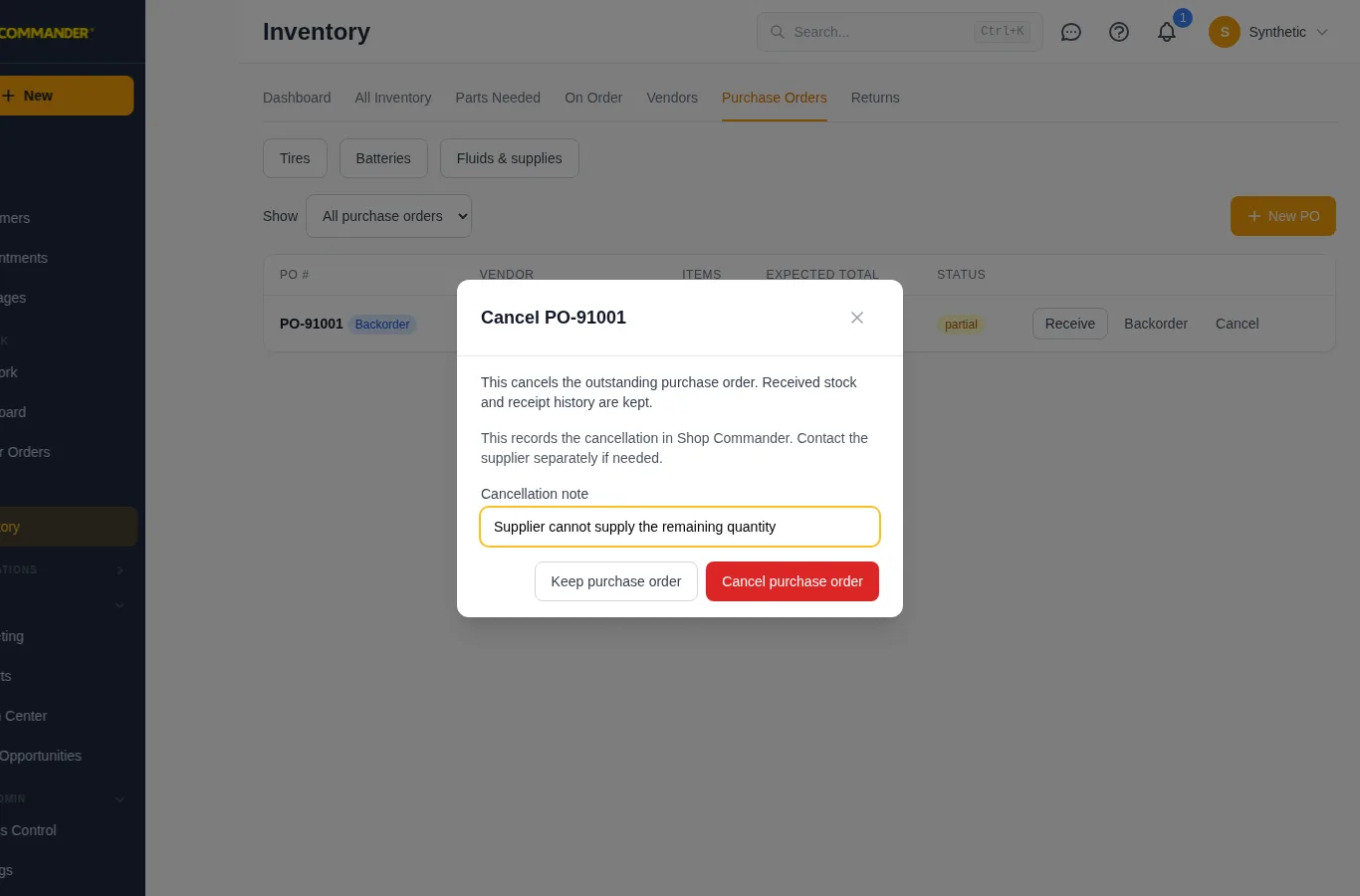
Cancel opens a confirmation naming the PO. Received stock and receipt history stay recorded. For a partially received order, enter a cancellation note explaining the outstanding remainder. Keep purchase order closes the dialog without submitting. A refused cancellation stays open with the note and explanation. Contact the supplier separately if needed; recording this cancellation does not send a supplier message.
Backorder purchase orders show a Backorder label alongside the PO number in both the table and phone cards.
Correcting purchasing lines before posting
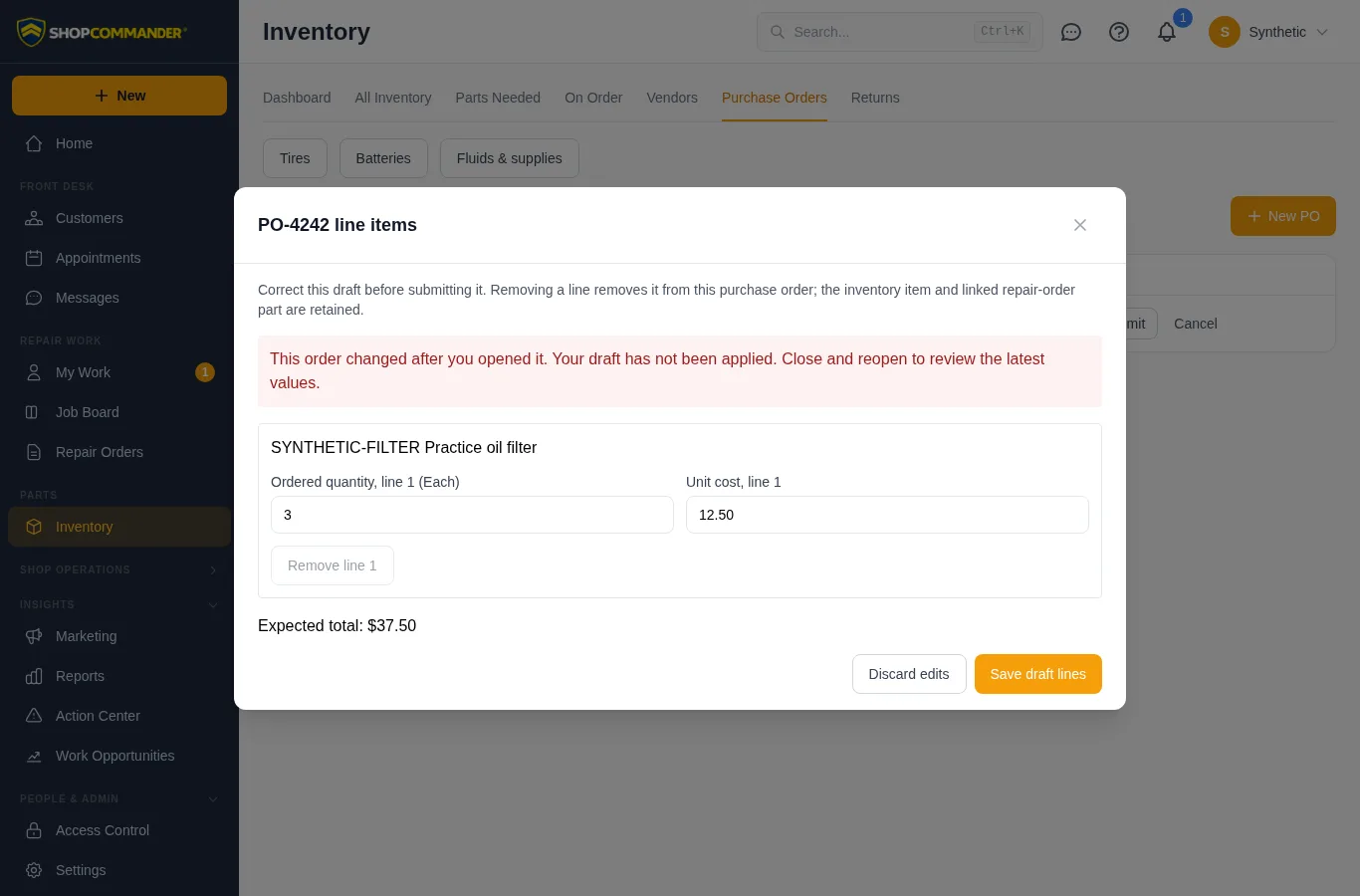
Open View items → Edit draft lines to correct a draft purchase order’s quantity or unit cost, or remove an unwanted line. The expected total recalculates before Save draft lines becomes available. Keep at least one line; cancel the order if the whole order is unwanted. Submitting the order closes this correction path.
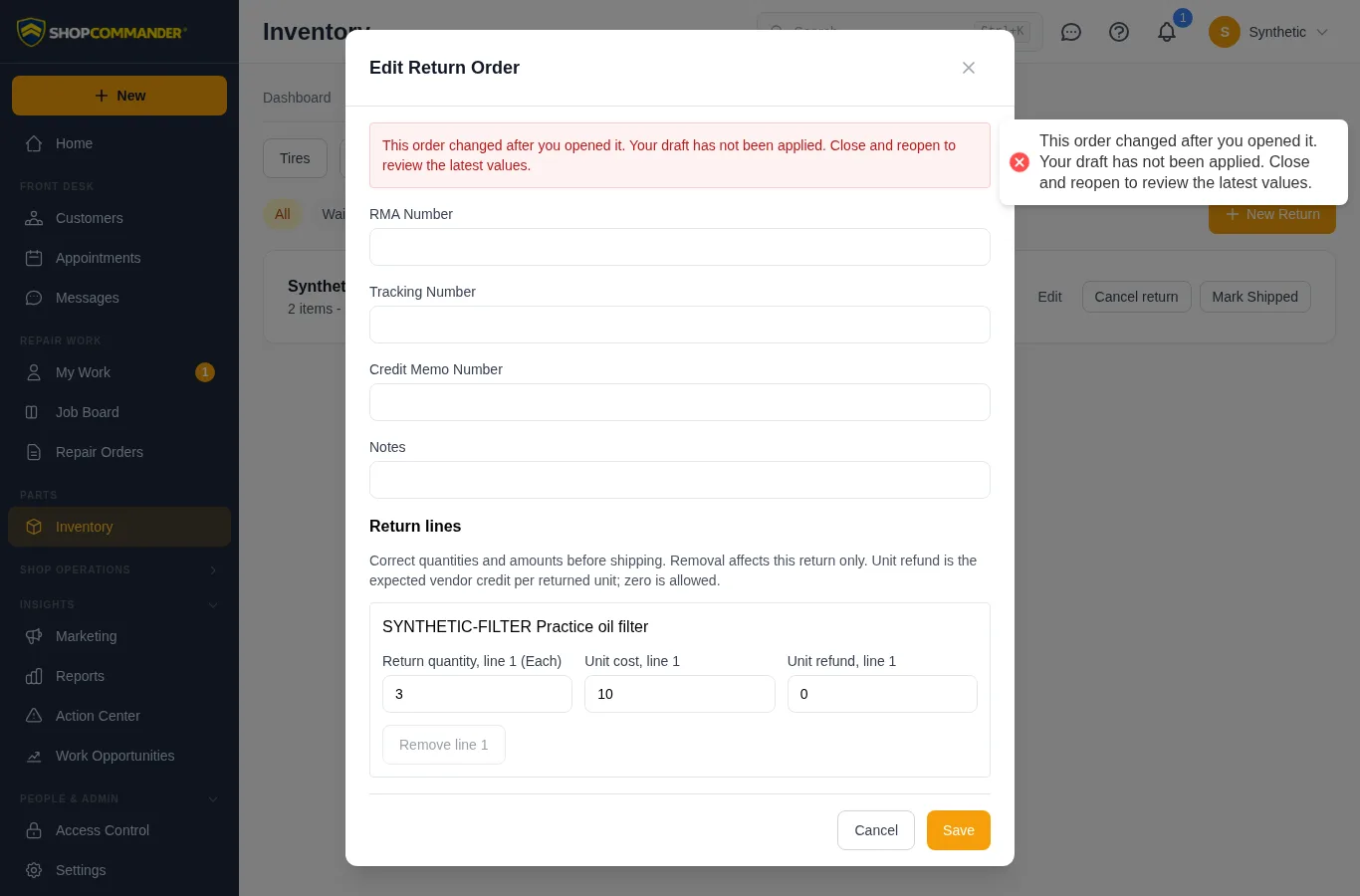
For a pending return, Edit → Return lines provides quantity, unit cost, expected unit refund and line removal. An explicit zero refund is allowed. Shipping locks the lines; reference fields remain editable. Warranty-linked returns must be corrected through their warranty workflow.
Saving these corrections does not move stock or issue credit. Receiving, shipping and recording the supplier credit remain separate actions. Inventory-item and repair-order-part links stay attached to their original lines. Received purchase orders show expected unit cost beside actual receipt cost.
If someone changes the order while you are editing, saving is refused and your entries remain visible. Note the intended correction, discard or cancel the edit, then reopen the order and review its latest values before retrying. There is no automatic overwrite.
Monthly parts contribution and cost coverage
Monthly Parts Performance uses the same posted sales, discounts, signed credits and recorded costs as Reports → Parts Contribution & Pricing. Each month shows net parts sales, known contribution and the number of lines with recorded cost. A missing or reconstructed cost keeps the full cost/margin unavailable, with a visible explanation. Known contribution covers the supported lines only; it is not total shop profit. Zero-sales cost rows remain visible even though a margin percentage cannot be calculated.

The business-date range on each month includes the dashboard's partial first/current month. Review parts contribution opens that same date range. Cost and profit permissions still apply; unavailable values never imply zero.
Duplicate and inactive vendors
Creating or renaming a vendor checks the shop's existing active and inactive records for the same name or account number, ignoring case and surrounding spaces. A match leaves the draft open and lists the existing identities. Correct the draft, cancel and use the existing vendor, or explicitly confirm that a separate vendor is intended. A newly competing match requires a fresh review; account numbers are not assumed globally unique across supplier branches.
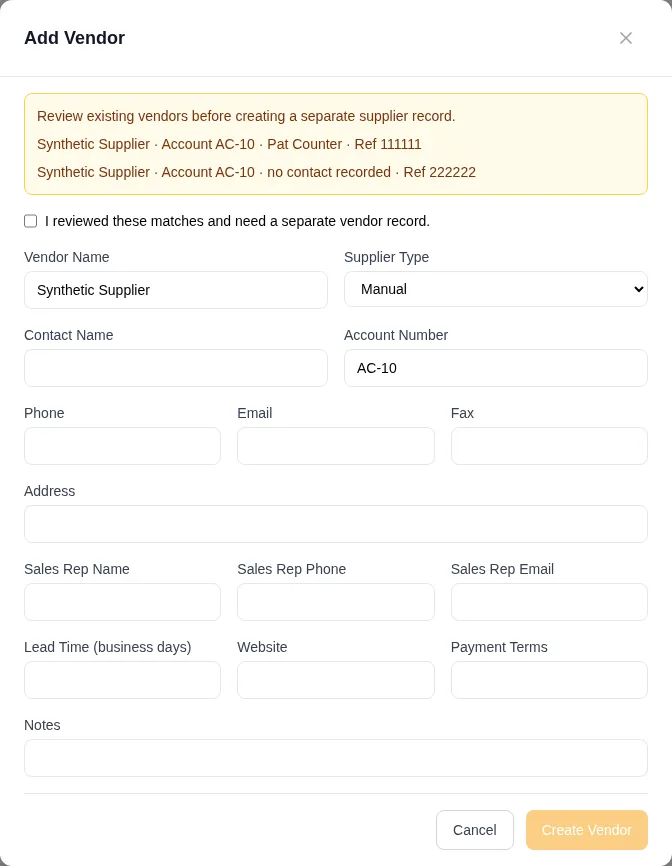
Duplicate-name choices include account/contact details where available and a stable reference also shown on the vendor card. Deactivate asks for confirmation and prevents new purchase orders for that vendor. Existing orders, returns and credit histories stay attached and accessible. Reactivate restores new-order eligibility. No financial records are merged or deleted.
A Parts Needed → Create PO handoff waits for supplier choices before matching a vendor. A unique active match may be selected automatically; duplicate names require a deliberate choice from the labelled options.
Purchase order record
Every purchase order has its own page at Inventory › Purchase Orders › PO-#, so it can be bookmarked and shared. The header names the vendor, the expected total, when it was ordered and expected, and how much has been received against how much is still outstanding. The one primary action follows the order's state: Submit to vendor for a draft, Receive while lines are outstanding, Reconcile once everything has arrived.
Receiving records the packing-slip date and the vendor's invoice number beside the quantities. When a vendor ships short, Move remainder to a backorder… shows exactly how many units arrived and how many are still outstanding before it creates the backorder; the original order then reads Closed short rather than received.