Inspection Builder
Build inspection templates from reusable modules — your checklists, your order, your photo rules.
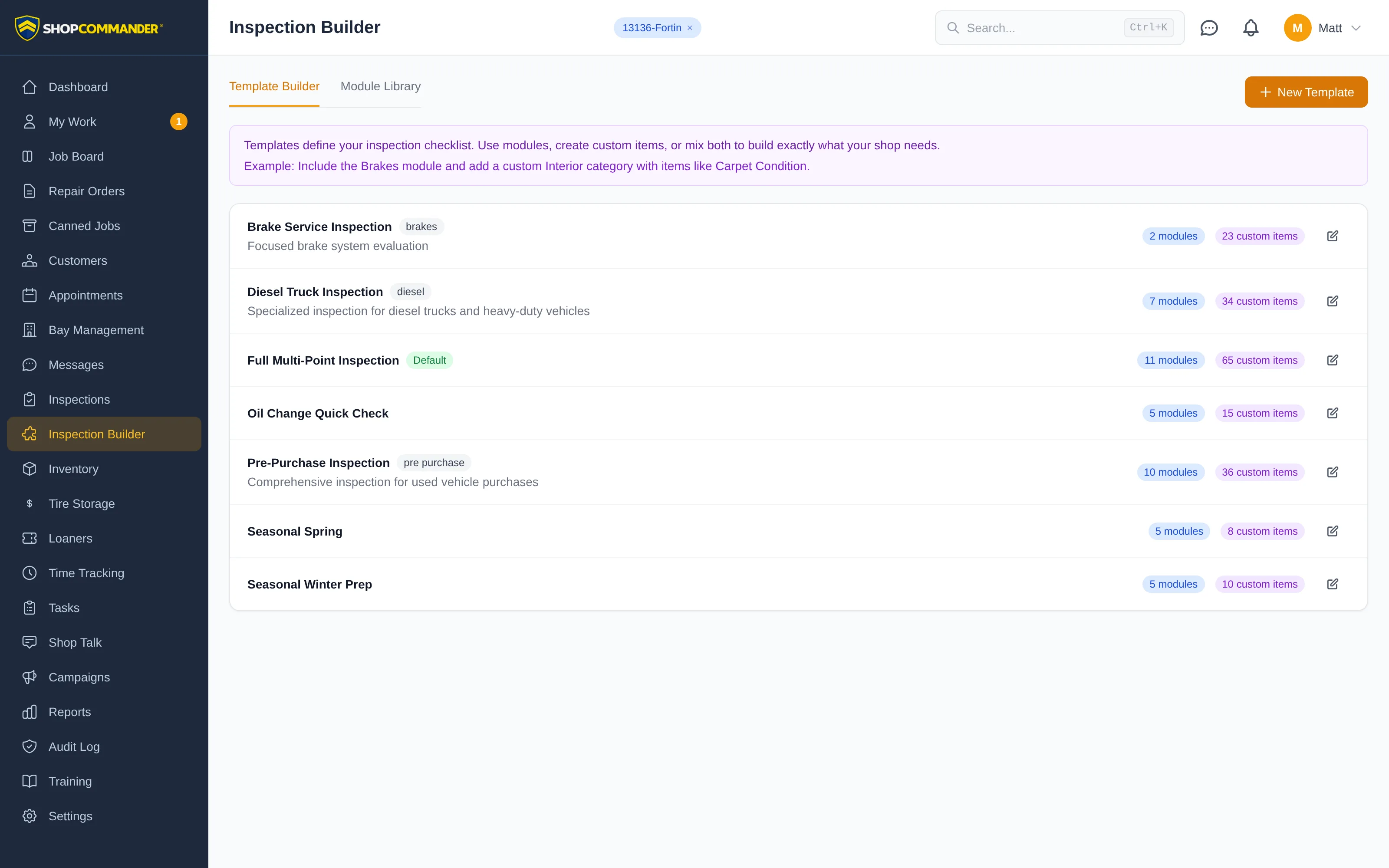
Every shop inspects differently. The Inspection Builder lets you define exactly what your techs check, in what order, with what photo requirements — no fixed forms. It has two tabs: Template Builder and Module Library.
Modules: build once, reuse everywhere
A module is a reusable block of inspection items — Brakes, Suspension, Fluids, Tires. Click New Module and give it categories, each with a list of items. Every item can carry:
- Criteria — what "good" looks like, so ratings stay consistent between techs
- Unit — mm, psi, %, whatever the measurement calls for
- Photo requirement — None, Yellow / Red Only, or Always
- Required — the inspection can't be completed until this item is rated
Fix a module once — say, adding a new brake fluid test — and update it in one place instead of editing every template.
Templates: assemble the checklist
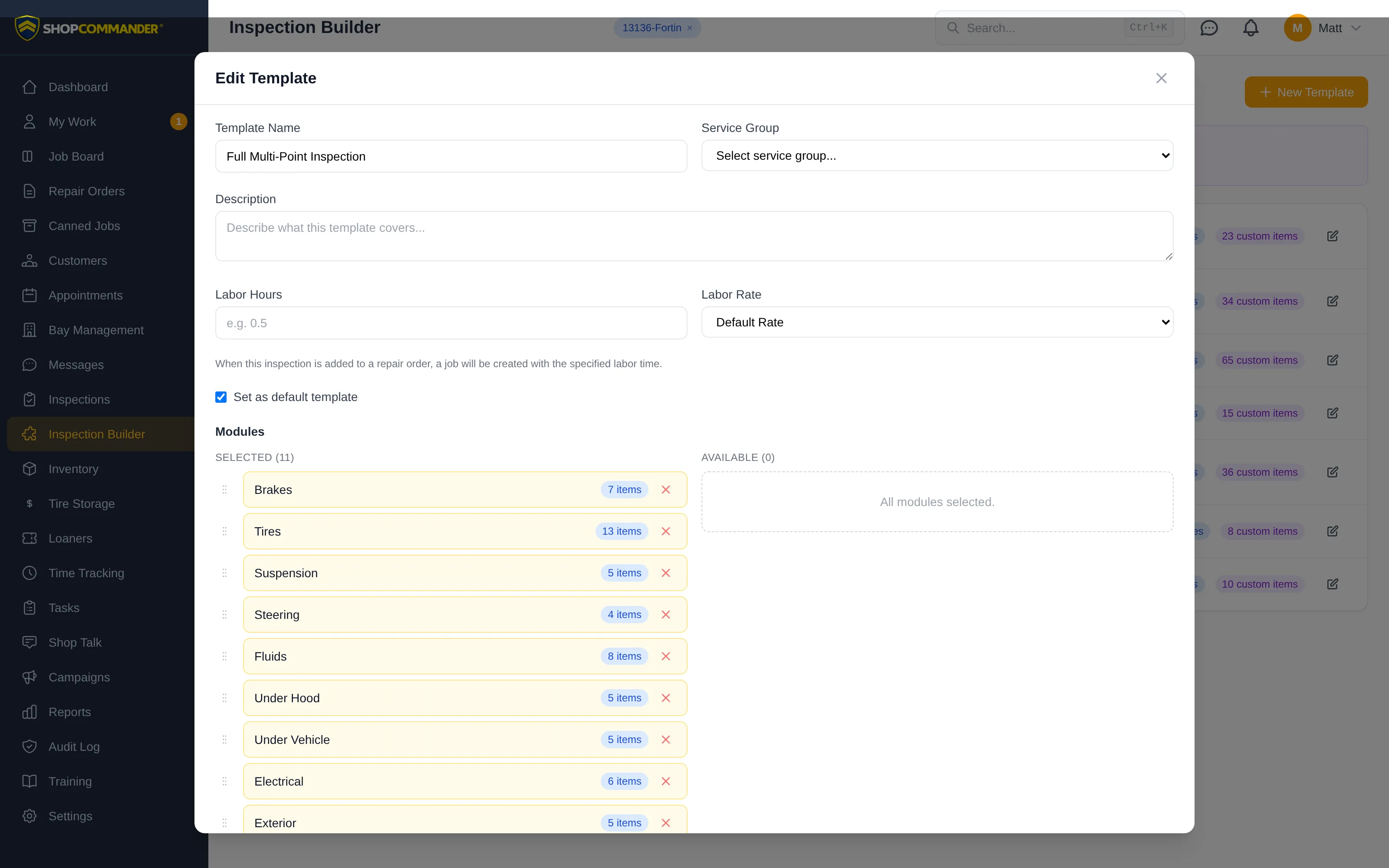
Click New Template to compose an inspection from your modules. Pick modules from the available list and drag the selected ones into the order your techs walk the vehicle. You can also click Add Category to build one-off custom items directly in the template — mix modules and custom categories freely. A common setup: include the Brakes module, then add a custom Interior category with items like carpet condition.
Each template also gets:
- Service Group — Maintenance, Repair, Pre-Purchase, Seasonal, Quick Service, or Other
- Labor Hours and Labor Rate — when this inspection is added to a repair order, a job is created with that labor time, so inspection labor gets billed instead of forgotten
- Set as default template — the one your shop reaches for most
Photo rules that enforce themselves
Photo requirements aren't suggestions. If a template says an item needs a photo when it's rated yellow or red, the inspection won't complete without one. That's how you guarantee every "you need brakes" conversation comes with proof attached.
Where templates show up
Everything you build here appears in the template picker when someone starts a new inspection. Change a template and the next inspection uses the new version — running inspections keep the checklist they started with.
Start with two or three solid templates — a full multi-point, a quick-service check, and a pre-purchase — and refine them as your techs use them.