Online Booking
Your shop's public booking page — customers pick a service, a time, and book themselves in.
Your shop gets its own public booking page — branded with your name and logo — where customers book appointments themselves, any hour of the day. The 8 PM "my brakes are grinding" moment becomes a booked appointment instead of a note to call you tomorrow that they'll forget.
What the customer sees
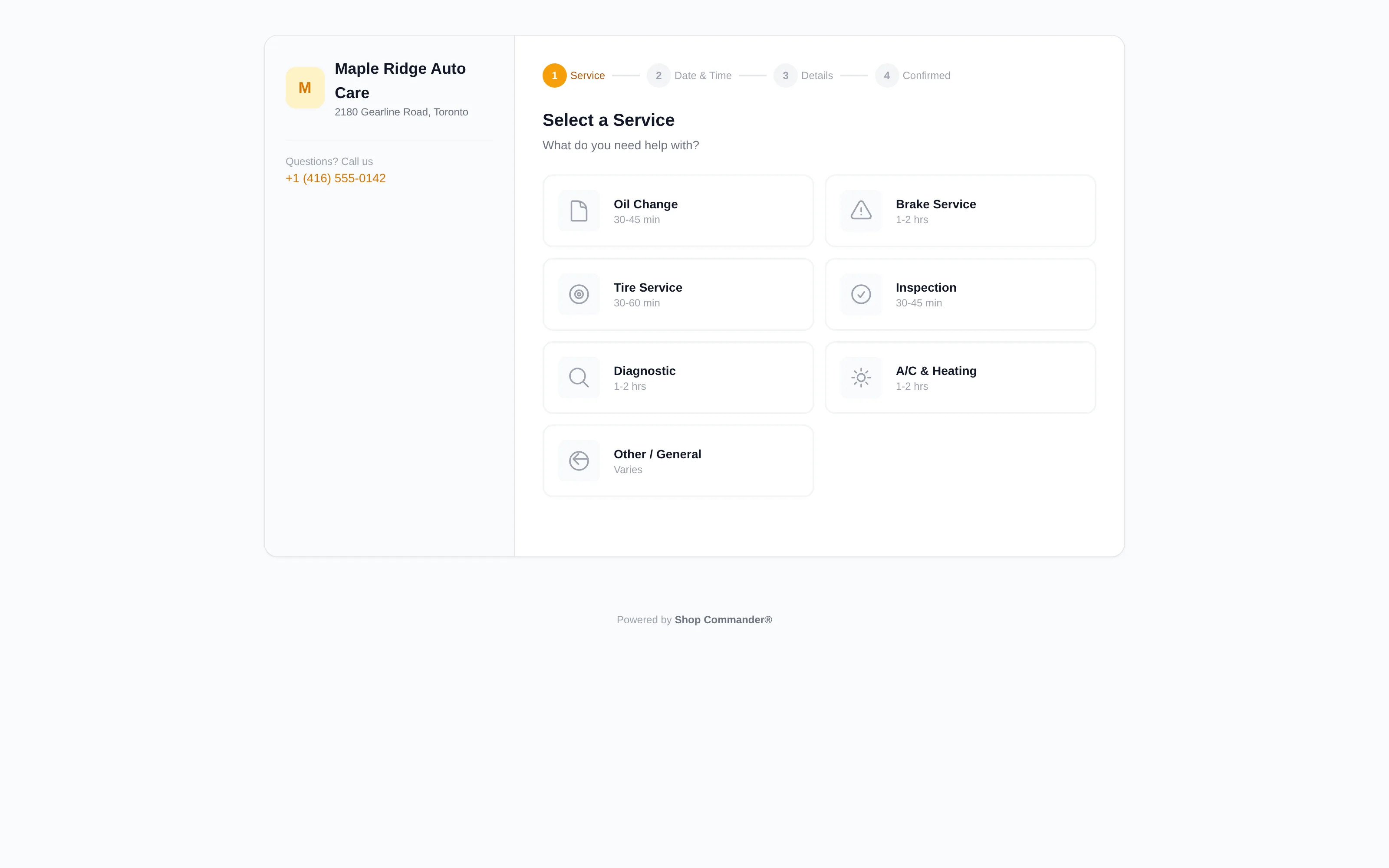
Booking is four steps: Service → Date & Time → Details → Confirmed.
- Select a Service — the services you advertise under Settings → Operations → Services Catalog with Offer on the online booking page switched on (Oil Change, Brake Service, Tire Service, Inspection, Diagnostic, A/C & Heating and Other / General to begin with), each with the duration and description you wrote.
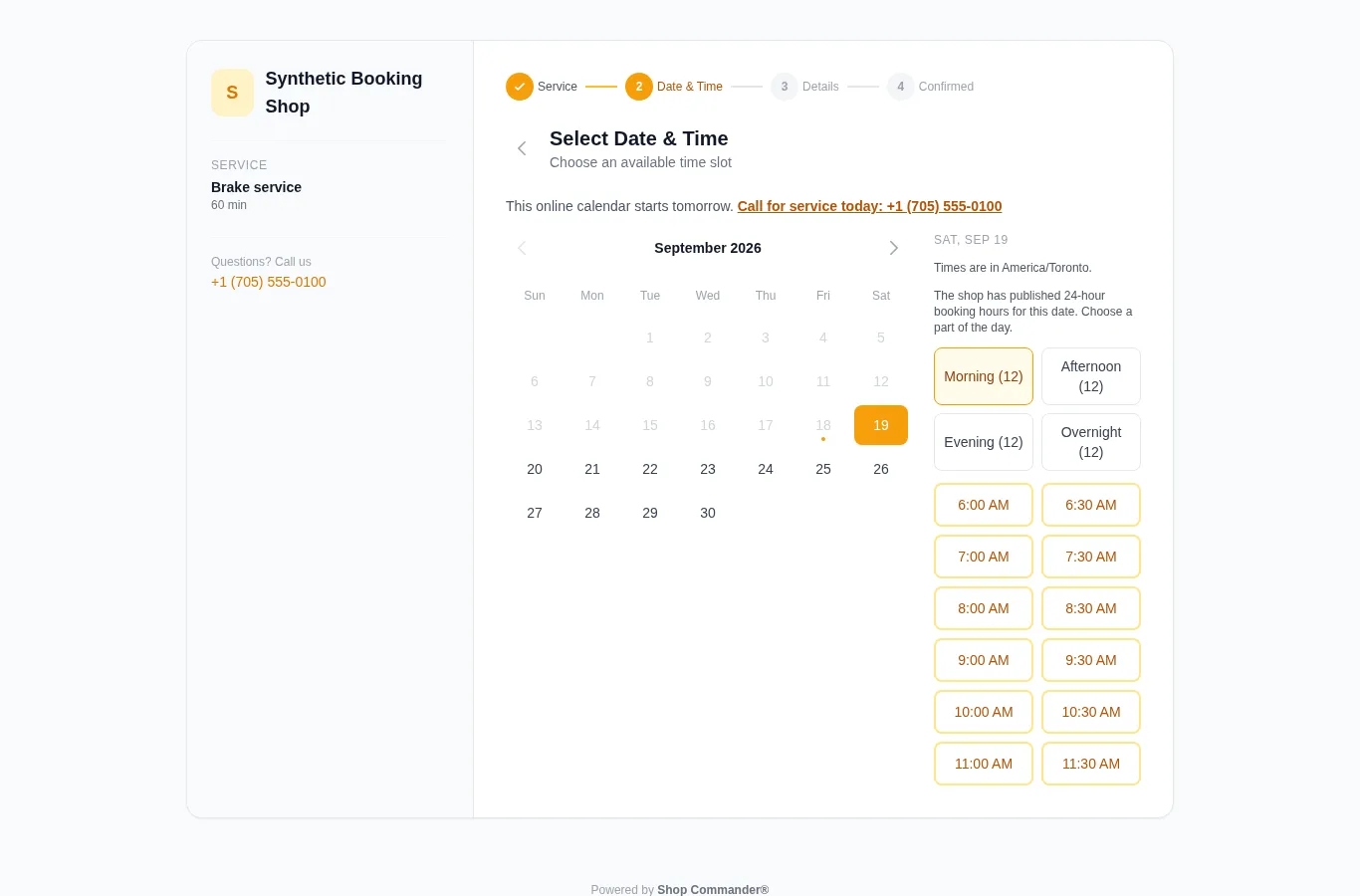
- Select Date & Time — a calendar that greys out your closed days, closures and special hours, and time slots calculated from your business hours, bay capacity, and what's already on the books. The calendar uses the shop’s date and starts tomorrow; customers who need service today can use the call link. Available times are grouped into Morning, Afternoon, Evening and Overnight. Overnight selection includes a date reminder. Effective 24-hour hours are stated explicitly, and failed availability reads offer Retry without retaining old slots. These groups do not change your configured hours or capacity.
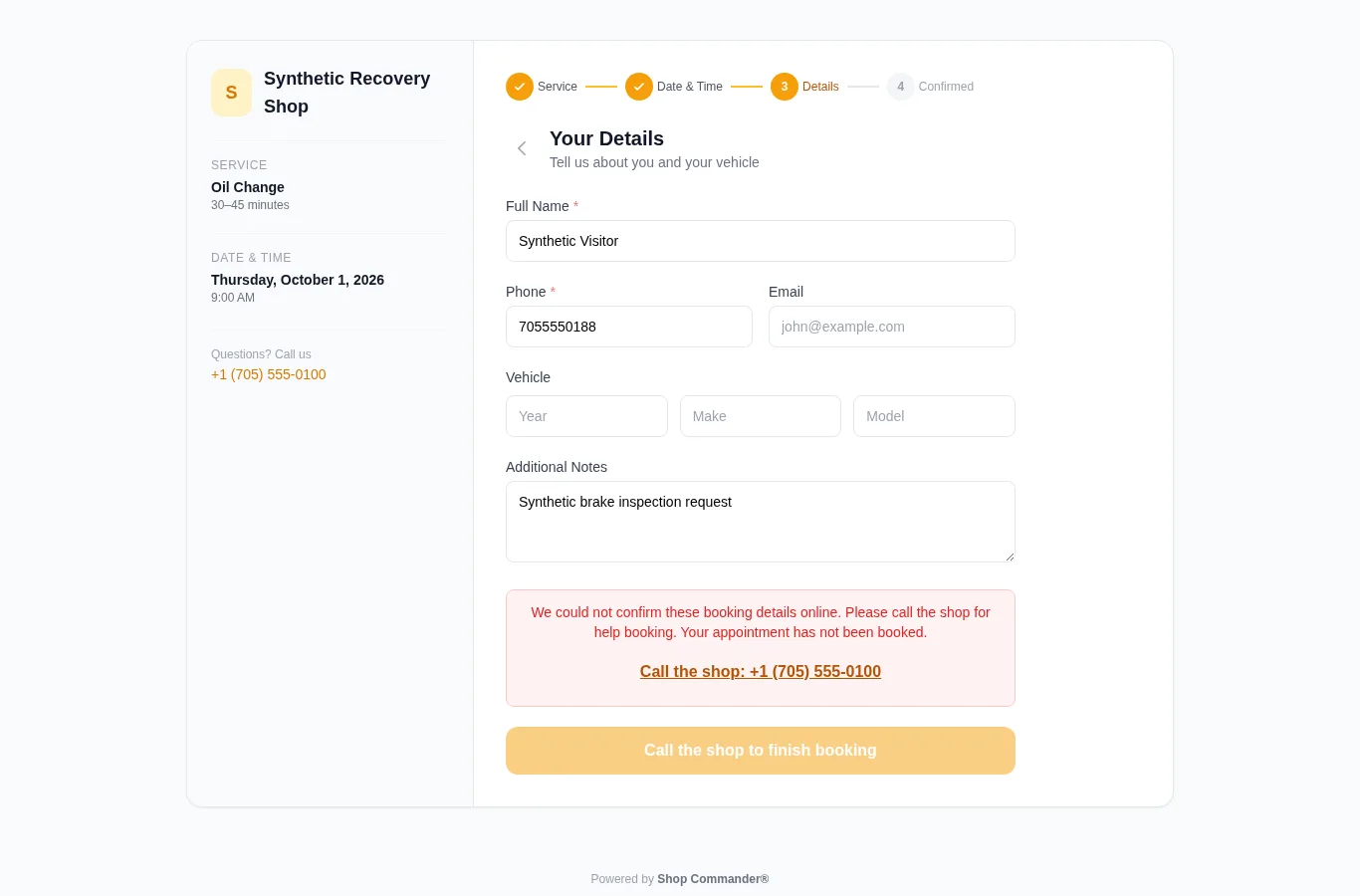
- Your Details — name and phone (required), plus email, vehicle year/make/model, and a notes box for symptoms and warning lights.
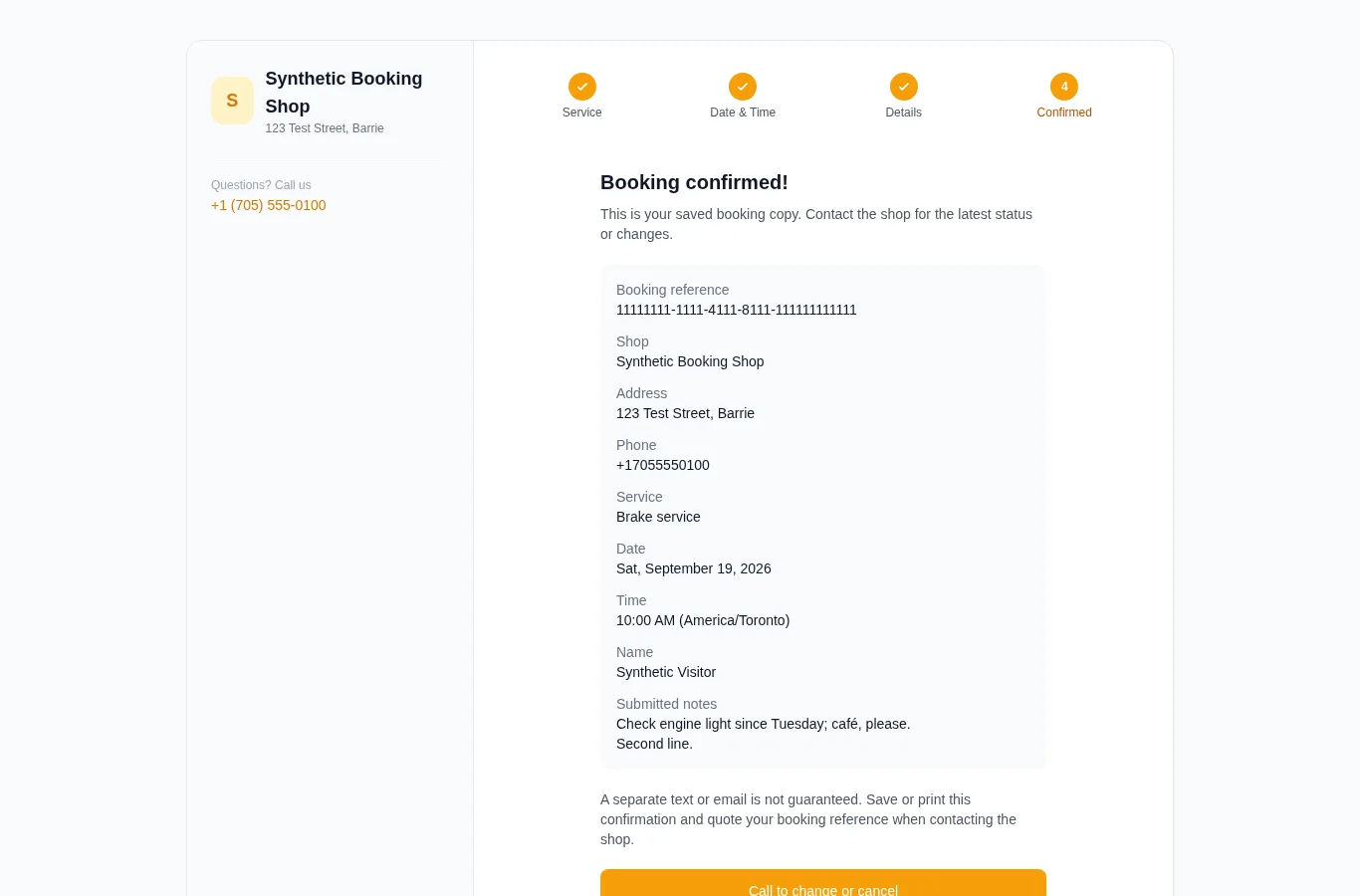
- Confirm Booking — a saved copy with your booking reference, shop address and phone, service, shop-zone date/time, customer details and submitted notes. Use Call to change or cancel, Add to calendar, or Print or save confirmation. The calendar uses the saved appointment instant. A separate text or email is not guaranteed. The confirmation URL restores a local copy for up to 24 hours in the same browser tab; it is not a live status lookup or a link to share with another browser. If browser storage is blocked, the successful booking remains visible with a reminder to save or print before leaving.
Your phone number sits on every step under "Questions? Call us" — the page invites the booking without hiding you.
What happens on your side
The booking lands on your Appointments calendar tagged Online Booking, ready for staff confirmation. When a new identity is supplied, the current booking workflow creates or links the customer and vehicle context it collected. Review identity, notes, requested service, capacity, and timing before confirming.
Online bookings are tracked as their own source, so your reports show exactly how much work the page brings in.
Getting the link out there
Your booking link is yourdomain/book/your-shop — put it everywhere. The slug is yours to change under Settings → Operations, but Shop Commander asks you to confirm because printed material and saved links point at the old address; the old link keeps redirecting after a change. The page is meant to be linked, not framed inside another site.
- Google Business Profile and your website — the two places customers look first.
- Text messages — when transactional messaging and Online Booking are enabled and provider-Ready, a clear booking request can receive the shop's booking link. Consent, opt-out, identity ambiguity, duplicate suppression, and provider delivery rules still apply.
- The customer portal — every customer's portal has a book-new-service button pointing here.
Turning it on
The page respects your settings — business hours, closures and special hours drive availability, the services come from your Services Catalog, and your logo and shop info come from your shop profile in Settings. Set your hours accurately and the page does the rest.
Booking from a customer portal
Schedule Service on a vehicle carries that portal’s customer and selected vehicle into the booking form. Keep the booking in the same browser tab. If the portal context expires or is unavailable, reopen the portal link. When booking details cannot be confirmed online, the page explains that no appointment was booked and offers the shop’s call link. The unchanged request cannot be resubmitted repeatedly; correcting contact details allows another attempt. The shop does not choose a customer record from ambiguous contact details.