Tasks
Internal shop tasks with checklists, assignments, and recurring schedules — the work that isn't on an RO.
Not everything in a shop is a repair order. Ordering supplies, cleaning bays, servicing the compressor, training the new hire — Tasks gives that work numbers, owners, and due dates, so it stops living on sticky notes.
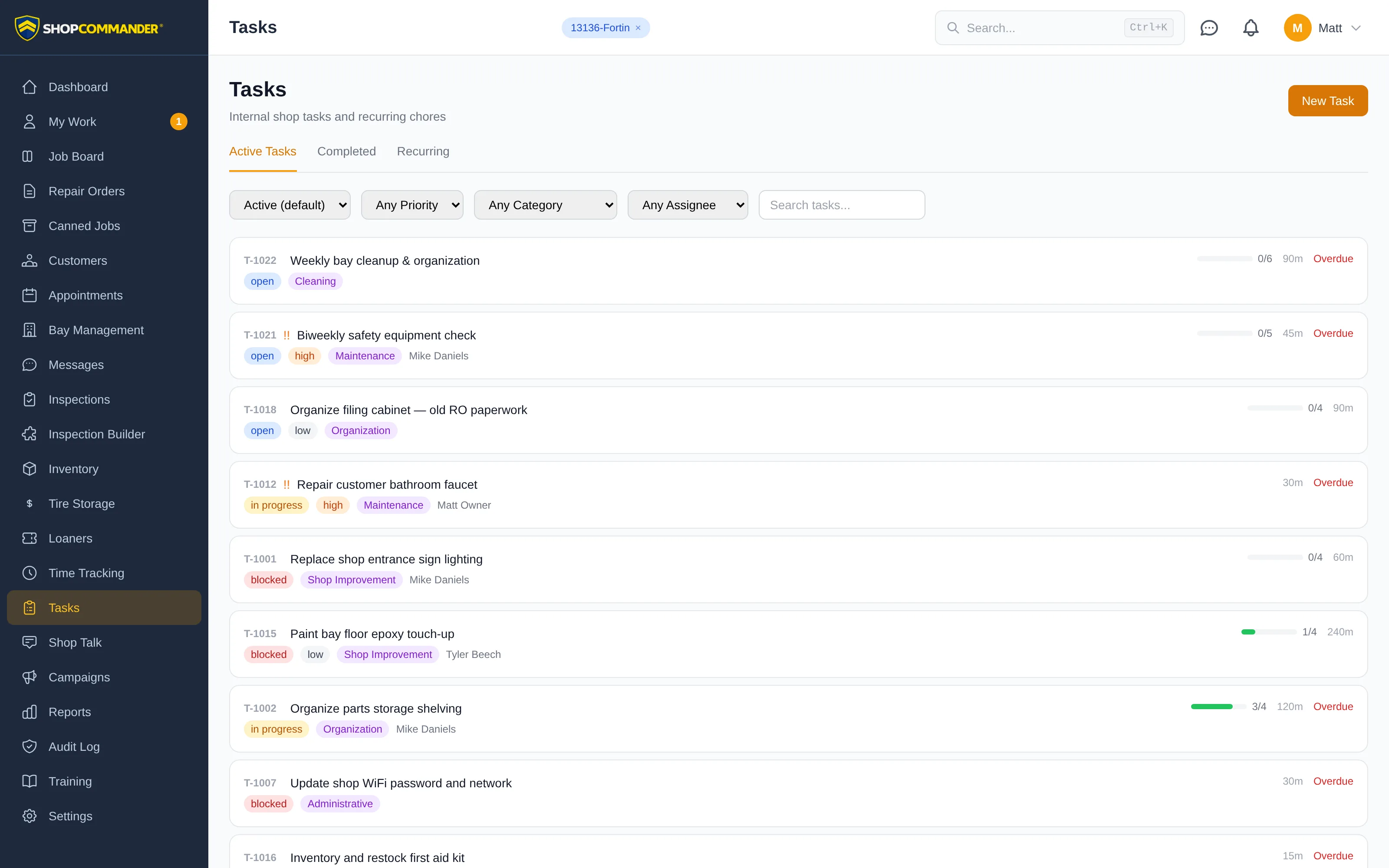
Creating a task
Click New Task and set it up:
- Title and description — what needs doing.
- Priority — low, normal, high, or urgent, with color-coded flags in the list.
- Category — Cleaning, Maintenance, Errands, Training, Organization, Shop Improvement, Administrative, or Other.
- Assignee and due date — who owns it and when. Overdue tasks flag themselves in red.
- Estimated effort — minutes, so a "quick task" list is actually quick.
- Checklist items — break the job into steps. The task card shows a progress bar as items get checked off.
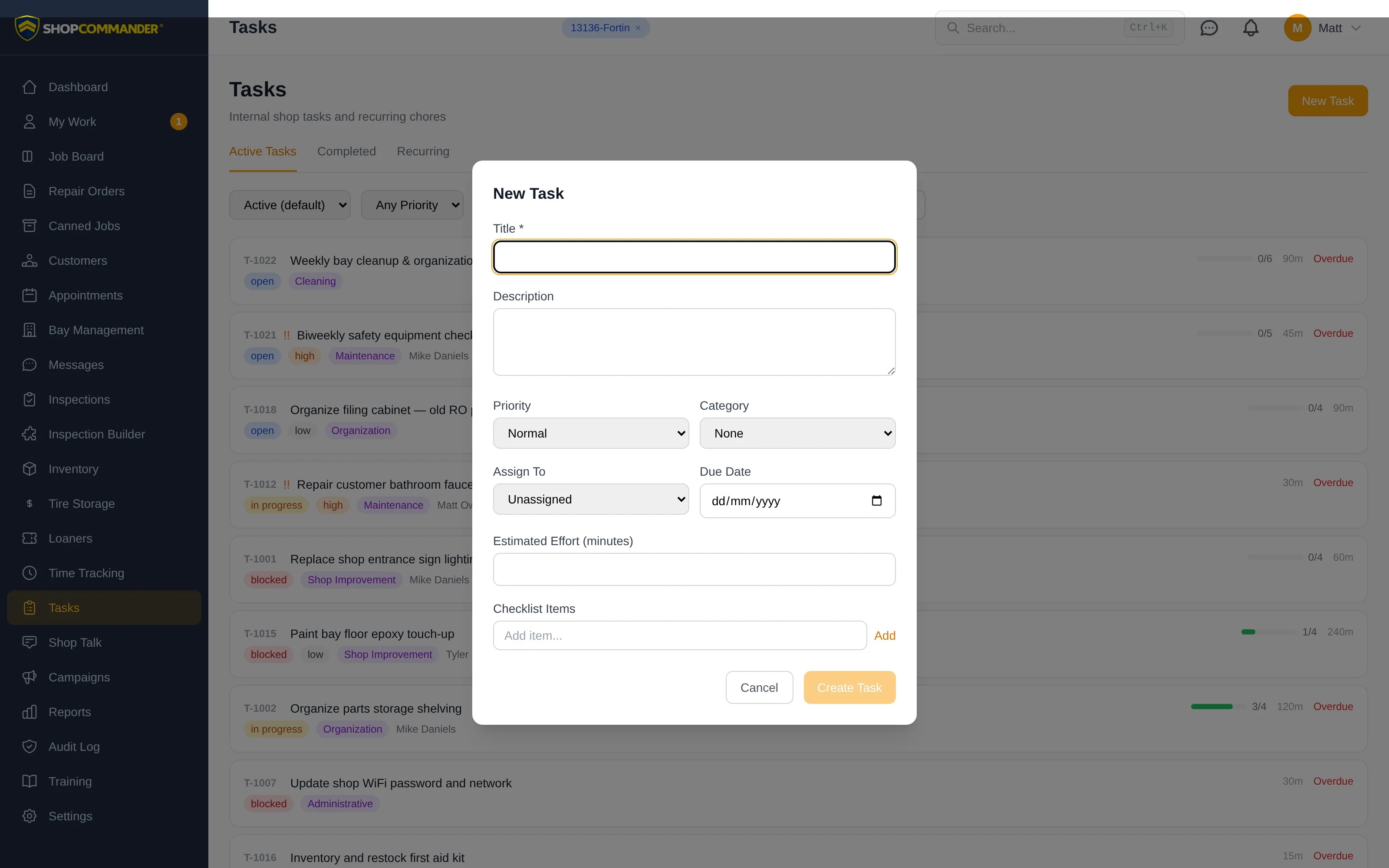
Every task gets a sequential number (T-001, T-002...) so "did you do T-047?" is a real question with a real answer.
Working a task
Click any task to open it. The detail page carries the whole life of the task: the checklist with completion tracking, comments for team discussion, file and photo attachments (with camera capture from a tablet), and an activity log of every status change and reassignment.
You can also schedule a task on the calendar — pick a date, time, duration, and bay, and it holds real space alongside your appointments. And if you've turned it on in Settings, tasks appear as purple cards on the Job Board, moving through columns by drag-and-drop just like repair orders.
The main page has three tabs — Active Tasks, Completed, and Recurring — with filters for status, priority, category, assignee, and a text search.
Recurring tasks
The chores that keep a shop running happen on a rhythm: sweep the bays every Friday, check the oil drums on the first of the month. On the Recurring tab, click New Recurring Template and set the schedule — daily, weekly, biweekly, or monthly, with the day of week or day of month.
Shop Commander generates the task automatically on schedule and drops it into Active Tasks, assigned and checklisted, without anyone remembering to create it. Each template shows how many tasks it has generated, with one click to see them all. Edit or deactivate a template anytime.
Next: Feedback — post ideas and bug reports that shape Shop Commander.
Visit handoffs
Transportation tasks can be assigned directly from the repair order’s Shuttle section, including pickup details and the requested time. Payment assistance tasks link the reviewer to the visit’s Payments tab. Follow the task’s linked repair order to act, then update the task status. Completing a task does not itself record a trip, customer approval, or payment.
Archive a task with time history
Archive removes a task from the normal work queue and board while retaining its time entries, attachments and activity. Stop any active task timer first. Select the Archived status filter to find it again, then use Reopen Task when it needs more work. Archival does not represent completed work or erase payroll evidence.
Linked calendar appointments remain separate records. Cancel them in Calendar if they are no longer taking place.