Appointments
Book, reschedule, cancel, check in, and hand a visit into the repair workflow using current availability and history.
Appointments is the authoritative scheduling workspace for booked visits. The selected date/view is addressable so refresh, Back, Forward, and shared internal links return to the intended schedule context.
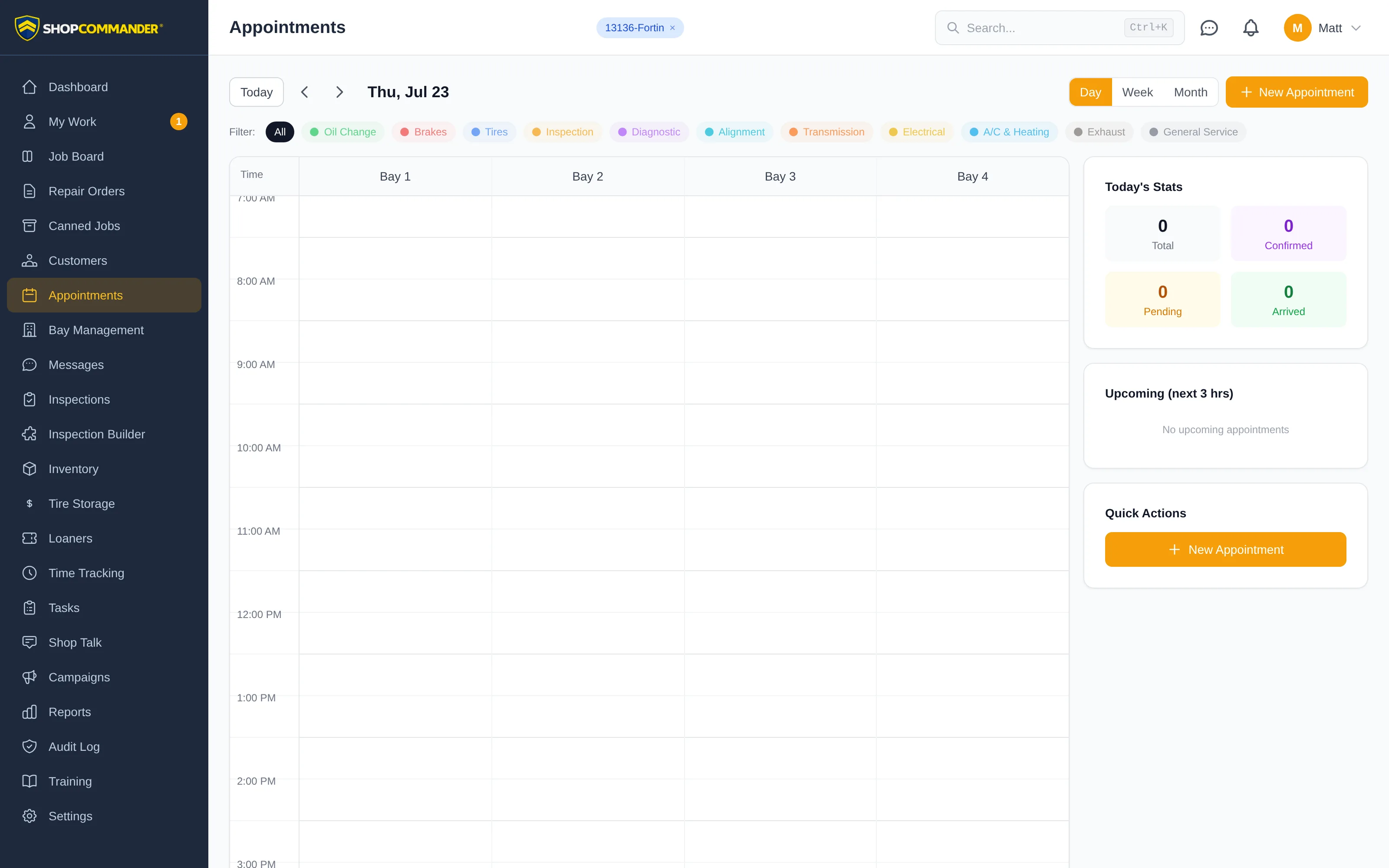
Book an appointment
Use New Appointment, choose the correct customer and vehicle or follow the current new-identity path, record the requested service/concern, and choose an available date/time under shop policy. Current business hours, closures, horizon, same-day rules, capacity, bay/technician conflicts, and permissions can affect availability.
Reschedule
Open the existing appointment and use the reschedule control. Confirm the exact new date/time. The same appointment identity is preserved with version/history; rescheduling is not cancel-and-rebook unless the product explicitly requires a different workflow.
Cancel
Use the cancellation control and record the current reason when required. Cancellation preserves the appointment and history, releases applicable future work such as reminders/changeover planning, and does not delete evidence.
Check in and hand off
At arrival, verify the customer, vehicle, concern, contact preference, and current odometer as applicable. Use the current check-in/arrival action, then create or connect the repair order through the offered handoff. Do not create a duplicate appointment or repair order simply to represent arrival.
Configured public and Voice booking
Public booking and supported Voice appointment workflows depend on shop configuration, provider readiness, identity/consent, and the same current availability rules. Voice booking, reschedule, and cancellation require explicit customer agreement to the exact action; the model cannot supply arbitrary appointment IDs.
See Online Booking and Check-Ins.
Choose whether to notify the customer
Editing or dragging an appointment saves its schedule without sending a message. In the edit dialog, explicitly select Notify customer of this change when a customer notification is intended. Sending also requires customer-messaging permission.
Hours and overlapping bookings
Creating, moving or resizing an appointment checks the occupied interval against configured shop hours. Ending exactly at closing is allowed; extending beyond closing requires an explicit override. Dragging uses the same conflict prompts as the appointment form, including successive hours, bay and technician conflicts. Cancelled, fulfilled and no-show appointments do not reserve future bay capacity. Calendar end times that cross midnight show AM and a next-day label.
Creating a customer while booking
Enter a complete phone number when one is supplied. If possible existing customers are found, review the matches before creating another record. Back to form keeps the booking draft; Open customer navigates to that profile and cancels creation. A duplicate-check failure is shown before you choose whether to continue.