Digital Inspections
Perform the DVI, satisfy required findings and evidence, then keep completion, publication, sharing, and customer view distinct.
Digital Inspections are real execution records tied to the vehicle and repair context. The current DVI workflow is mobile-first for Technicians and Apprentices and uses the shop’s configured templates.
Start the real inspection
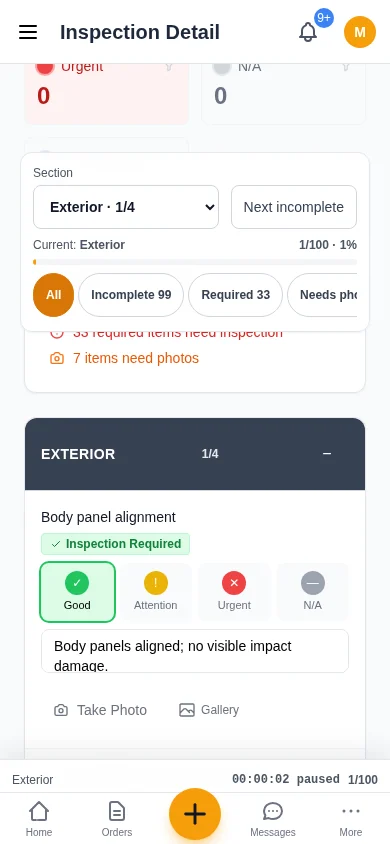
Open an eligible assigned inspection from My Work or Inspections. If no eligible inspection exists, the repair-order/advisor workflow must create one from a configured template; guidance does not fabricate it.
Perform required items
Work through the sections and use Next incomplete to find the next required finding. Record actual condition, N/A only when appropriate, measurement/unit where required, and a customer-appropriate explanation. Template photo rules can require evidence for all findings or for selected conditions.
Write the customer explanation
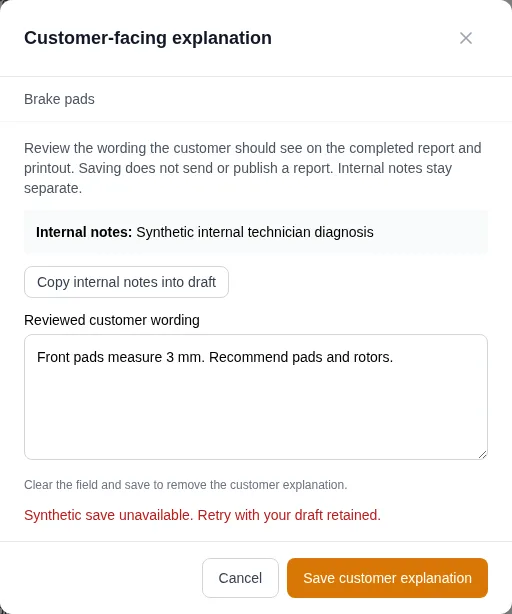
Internal technician notes remain private. For each finding, choose Edit customer explanation, write the Reviewed customer wording, then Save customer explanation. Copy internal notes into draft is an explicit starting point for review; copying alone does not save or publish anything. Clear and save to remove customer wording. AI cleanup is optional.
A failed save retains the draft for retry. If another user changed the finding, the editor stops the stale save and keeps your text for comparison; copy it before cancelling and reviewing the current finding. Completed findings require the supervised reopen/correction flow before wording can change. Complete and publish the updated report afterward.
Complete execution
Completion means the inspection execution satisfied its required items/evidence. It does not mean the customer presentation was published, sent, opened, or acknowledged.
Publish and share
An authorized person reviews the customer-facing presentation and publishes/shares the applicable immutable revision. Internal working notes are not exposed by the public projection. A fresh governed link can be sent through a configured consented channel; delivery and customer view remain separate facts.
Customer view
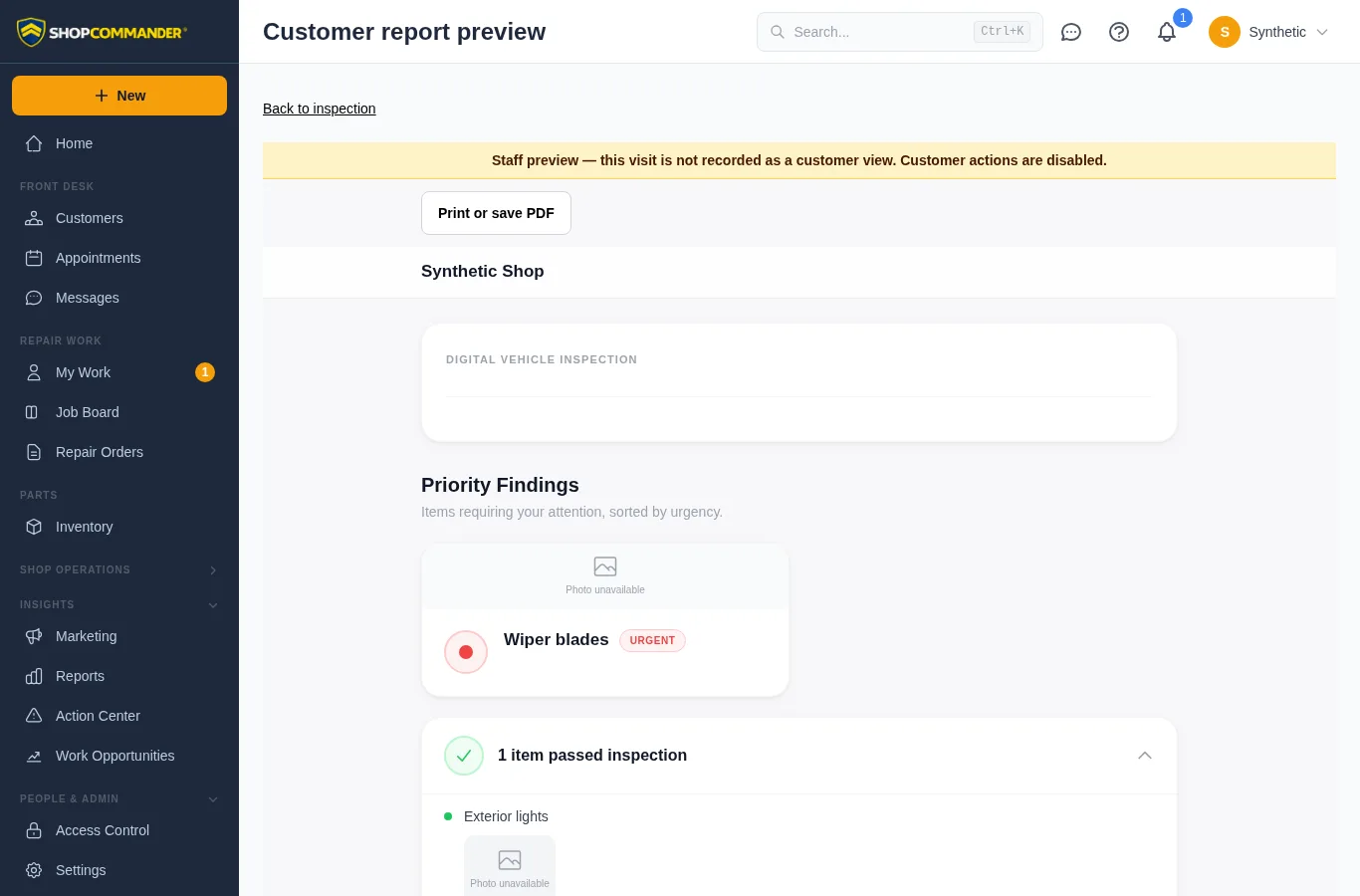
The public link presents the published customer revision only. Shop staff can distinguish completed, published/shared, viewed, and any later acknowledgement/request rather than collapsing them into “sent.” See What Your Customer Receives.
Revisions preserve evidence
If a correction is required, follow the current reopen/revision workflow. Prior published evidence and customer-view history remain attributable; a current master-data edit does not silently rewrite the old presentation.
Recover an inspection started in error
On an unfinished inspection in an open visit, a supervisor with inspection perform/send permissions can choose Cancel unfinished inspection and enter a reason. If the inspection belongs to a billable job, resolve that job with the customer first; the cancellation dialog explains the requirement.
Cancellation retains findings, photos and the actor/time/reason, revokes customer shares, and removes that inspection from unfinished-work blockers. It does not mark required checks completed. The cancelled record is read-only; start a new inspection when replacement work is needed.
Cancelled inspections show how many items were actually inspected and how many remain uninspected. They leave the active technician queue, and their timers and completion actions remain frozen.
Saving findings
Notes and measurements save after editing. The inspection shows when edits remain unsaved and warns before leaving or reloading. Wait for saving to finish; if a save fails, keep the page open and resolve the error or offline conflict before navigating away.
Customer reports preserve the inspection's mileage unit. Internal timer duration remains in the staff record. Staff customer preview uses the existing inspection-read scope; publishing a customer link requires separate sharing permission.
Preview and share the customer report
Preview customer report opens the finalized customer presentation using your staff access. Technicians can review inspections available to them without creating a customer share link. Customer decisions and view tracking are disabled in this preview. Ask an advisor with sharing access to review and send it.
The customer report includes the shop’s available contact details and Print or save PDF. Staff Print includes customer-facing Recommended Work even before the first publication; internal Monitor/No action dispositions stay private. Once published, print uses that immutable revision, so later recommendations require publishing an updated report. Internal timer duration stays in the staff record.
The new-inspection dialog requires a visible open repair order and a template before creation. Its optional technician selector includes active apprentices. If a vehicle link opens the dialog without a preassigned technician, your selected technician is retained when you create the inspection. A technician supplied by the repair-order launch remains assigned. If no visit is available within your assignments, ask an advisor to confirm and assign the existing visit. A failed lookup offers Retry and does not claim the vehicle has no repair order.
The inspection’s Updated time advances after the server acknowledges a saved finding. A rejected or pending change does not advance it.
Unavailable inspection photos
A photo that cannot be loaded is shown as Photo unavailable, with the finding’s name retained. Staff thumbnails and both customer-report layouts keep this placeholder, including when an older media URL has expired or returns Gone. This does not mean the finding has no photo, and it does not replace or repair the original evidence. Ask the shop to review the source image when that evidence is needed.