Bay Management
A live view of every service bay — what's in it, how it's progressing, and what's waiting for one.
Bay Management answers the question every shop owner asks a dozen times a day: what's in each bay right now, and is it on schedule? One card per bay, live status, and a queue of vehicles waiting for a spot.
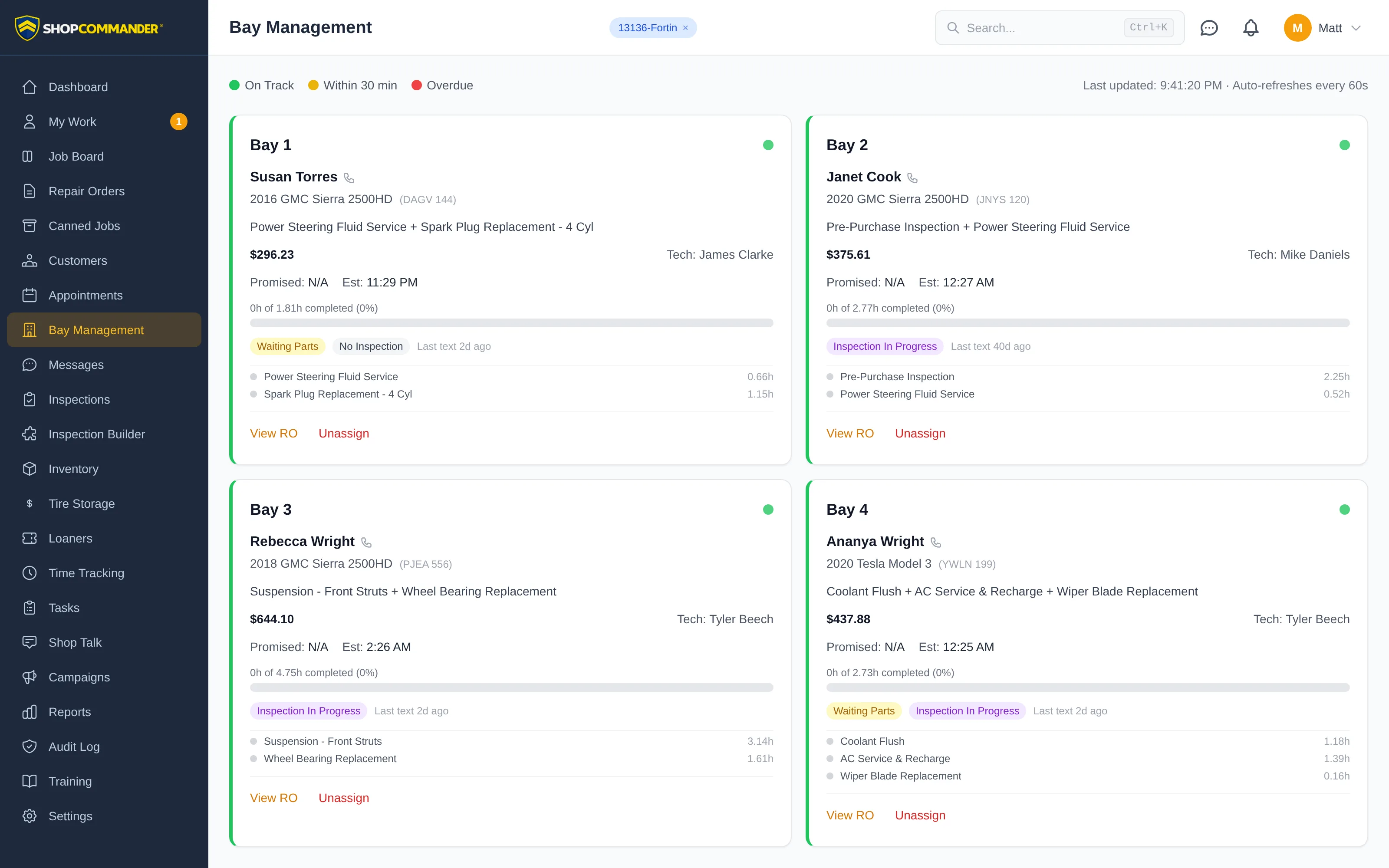
Reading the board
Each occupied bay shows the RO number, customer, vehicle, a summary of the services being done, and the estimated completion time. Individual service lines get their own status dots, and if there's an inspection on the job, its status shows as a badge — you can see "waiting on the inspection" without walking out to the bay.
A colored dot on every card tells you how the clock is doing:
- Green — On Track — work is inside its estimated completion time.
- Yellow — Within 30 min — the estimate is about to run out.
- Red — Overdue — the work has blown past its estimated completion.
Empty bays show an Available badge, and if an appointment is headed for that bay, the card shows what's coming — so you know Bay 3 is open now but spoken for at 2:00.
The page refreshes itself every 60 seconds and shows when it last updated. Put it on a wall monitor and it becomes the shop's heartbeat.
Assigning vehicles to bays
Two ways to fill a bay:
- From an empty bay — hit Assign Vehicle on the bay card and pick from your active repair orders.
- From the Unassigned Queue — checked-in vehicles that don't have a bay yet appear in a queue below the grid, each with an Assign button. Pick the bay, done.
You can also pre-assign bays when booking on the Appointments calendar, so the day starts with a plan. When a job wraps, unassign it and the bay goes back to Available for everyone watching.
Why the overdue color matters
The red dot isn't decoration — it's the earliest possible warning that a promise time is at risk. The moment a bay goes red, the advisor can call the customer before the customer calls the shop. Pair this page with the Job Board: the board tells you where every job stands in the workflow, Bay Management tells you where every job physically sits and whether it's beating the clock.