Website
Build and preview a website for any vehicle, equipment or service business from the facts Shop Commander already knows, then connect a domain you control.
Website
Website (in the sidebar under People & Admin, when the Website feature is on) builds a professional site from facts you already maintain in Settings — name, address, phone, hours, services, public profile and team profiles — and from what your business is: what you service, how you work and who you serve. It is not an auto-repair template with different pictures: a marine yard, a mobile heavy-equipment outfit and a detailing studio each get a different layout, different sections and different words. The site never invents a fact: if your hours are not complete for all seven days, the site shows no hours at all rather than guessing; if you do not publish your address, no page prints it.
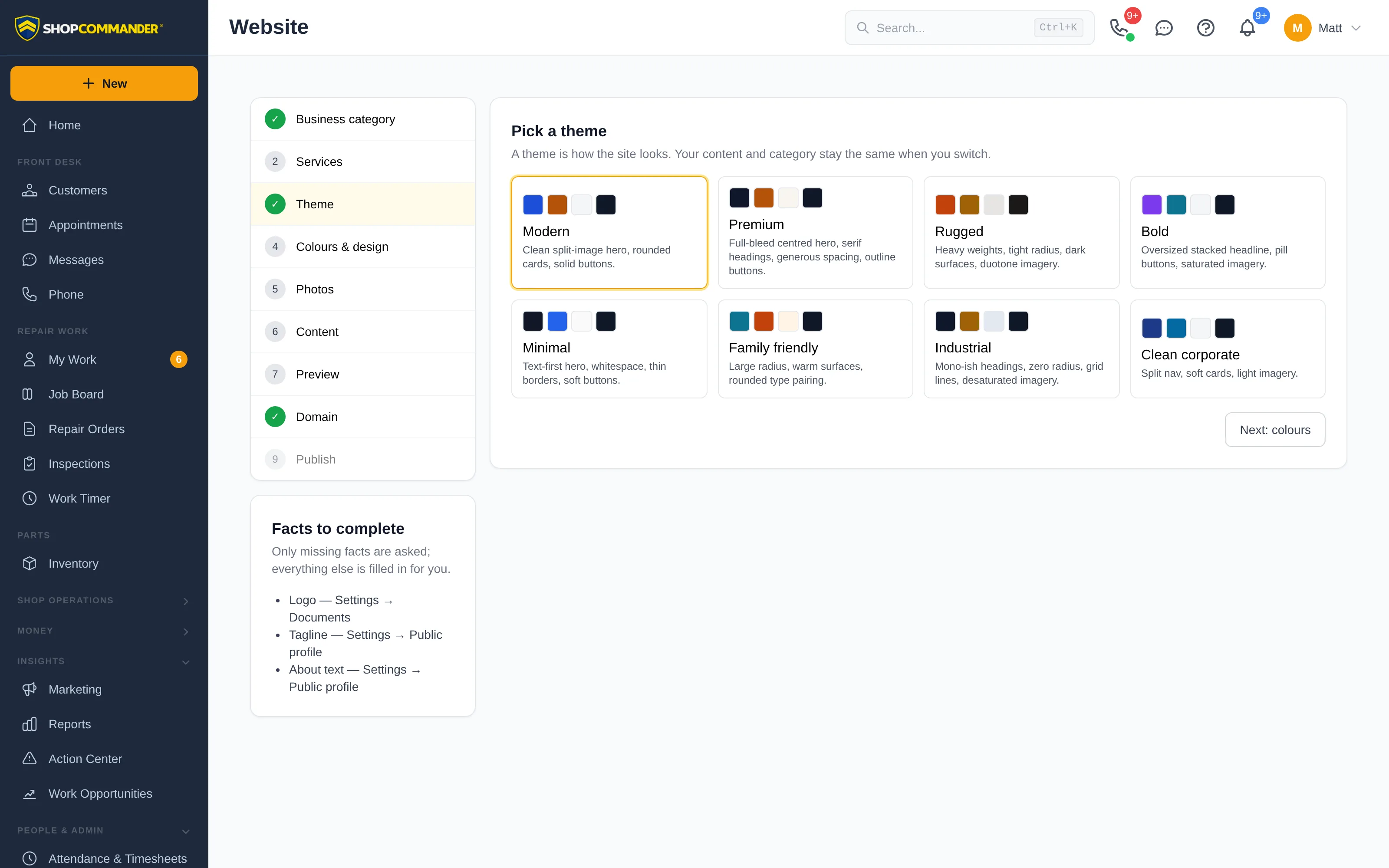
The setup steps
- Your business — describe your business in your own words (type it; suggestions appear for common types, from general automotive repair to outboard service, chainsaw repair, hydraulic hose service or towing — and anything not on the list works just as well). Add what you service (cars, pontoon boats, skid steers, golf carts…), tags, how you work (at your shop, mobile, on site, roadside, pickup & delivery), your service area and whether you serve consumers, businesses or both. This is saved to Settings → Public profile. A layout is then chosen for you from those facts — booking-first service business, transformation (galleries and before/after), field service (service area first), commercial program, emergency/call-first, or a drop-off workshop — and you can pick another. The sixteen automotive content packs are still available under Automotive content packs.
- Services — the services your business type suggests are offered as a checklist; ticking one adds it to Settings → Services. Categories are yours to define: type any category and the site groups by it. The site only ever shows what the catalog contains, so a deleted service has no page and a custom service ("Forestry mulcher hydraulic hose repair") gets a page, a slot in the navigation and a place on the inquiry form like any other. Each service you confirm gets a full page written for it (what the job includes, when it is needed, what affects time and cost, questions people ask) plus an advice article — see Content below.
- Theme — nine looks, each a design system of its own: Modern Independent (a photo that runs to the edge beside big type, icon cards, light bands), Industrial (a full-width photo under the headline, a spec table, hazard stripes, a dark "how it works" band), Rugged (dark throughout, condensed type, a tinted photo), Premium (a centred headline over the photo, a numbered editorial list, warm whitespace, outline buttons), Clean Technical (type on a quiet band, a two-column list, hairlines — the one theme that keeps photos below the fold), Friendly Local (rounded photo, pill buttons, an icon grid, a teal "how it works" band), Performance (a poster headline over the photo, photo tiles, dark by default), Commercial (a top utility bar, a capability matrix, navy bands) and Heritage (a framed photo, serif type, a badge motif). Every theme opens with your photo and a headline that names your town, followed by a short row of facts — today's hours, how you work, online booking when it is on — and every page is laid out in bands: services, how it works, where you work, about, visit us, questions, and a closing call to action. A theme changes layout and appearance only, never your content, and no theme is tied to a kind of business.
- Colours & design — pick a colour scheme named after a real design style (Swiss Red, Marine Navy & Brass, Workshop Charcoal & Safety Orange, Studio Black & Gold…), or keep the theme's colours, then change any individual colour, the font pairing, light/dark mode, a decorative motif and the photography style. Every combination is checked for readable contrast before it saves.
- Photos — every slot the site can use is listed: hero, about, your premises (only if your address is public), service area, one per service, one per thing you service, gallery, project before/after pairs, team. Upload your own, choose from your library, or press Use library photos for empty slots to fill them with platform photos matched to what you service (your own uploads are never replaced). The platform library holds a photo for every kind of business it knows — a golf-cart shop gets a cart, a marina gets boats, a mobile hydraulics outfit gets a service truck at a landing — plus a "where we work" scene for your area, a photo for each service category, and no photo is ever used twice on one page. The service page and its advice article carry the service's own photo. Team and project photos are never generated.
- Content — every page is written for you, and this is the step where you read it. The wording starts from Shop Commander's service knowledge (what an oil change or an outboard service actually involves, written once by the platform and checked so it can never contain a fact about a particular business) filled with your own facts, in your own words (boats, machines, units — not "vehicles" unless that is what you service). Where AI writing is available, a background rewrite then puts every page in your business's voice; you can keep working while it runs, and a status line shows what it is doing. Each block shows where its words came from — standard wording, written for you, edited by you, written by you — with Rewrite and Reset to suggested beside it. Anything you edit is kept and never overwritten, question by question for the FAQs. If a draft asserted something your facts do not support (a warranty, years in business, a same-day promise), that sentence is removed and the block says so; add the fact in Settings if it is true and rewrite. Write everything again re-runs the whole site from your current facts (it asks first and shows the month's allowance).
- Preview — a private preview address that is never indexed. Copy a share link (valid 24 hours, revocable) to show a colleague, or create a snapshot that freezes the draft and facts for a final review.
- Domain — the website is published only on a domain you control. Keep your domain where it is and let Shop Commander manage DNS, keep managing DNS yourself, or register a new domain in Settings → Domains. Then bind the name the site answers on (www is recommended; the bare domain redirects to it). Keeping your website elsewhere? Bind a branded service subdomain such as
my.yourdomain.cainstead — estimates, inspections, invoices, booking and the customer portal are served there. - Publish — freezes the draft and your business facts into a numbered release, builds the site and switches it live on your domain. Every release is listed with its status; a previous release can be restored in one click. When business details change in Settings, the site republishes automatically (or asks you to, if you turn automatic republishing off).
What the site says about how you work
The home page carries a How it works block: the customer's journey through your business, built only from what you actually have switched on — book online (when online booking is on), send a request or call (for a call-first business), where the work happens (at your shop, mobile, pickup and delivery), the estimate you approve by link, an inspection with photos (when digital inspections are on), updates by text (when messaging is on), paying from the link (when card payments are on), and afterwards the customer portal, a loaner or seasonal tire storage where you offer them. Switch a feature off and its step leaves the site at the next publish; nothing on the page promises a feature you do not have. The block ends with a "Powered by Shop Commander" line you can hide in Pages & landing pages.
Below the services, a Where we work paragraph names your city, your regions and your service modes, and the home page ends with questions whose honest answer is one of your facts (do I need to book, will I know the cost first, when are you open, how can I pay, where do you work).
Advice articles
Every service page has a companion advice article (/advice/<service>/) written for your customers — what the job does, when it is needed, what to watch for between visits — and an Advice page lists them. The switch in the Content step has three settings. Automatic (the default) publishes every article but lists only those written in your own voice or edited by you for search engines, so a site whose AI writing is off never publishes the same article as another business under the same address. Always on lists every article; Off removes the advice pages. Each article can also be hidden on its own. Like any change to the site, the switch takes effect on the next publish.
Only you can add these
The Content step also asks for three things no platform can write: one customer review (paste a review a customer gave you — first name only, and only with their permission; it goes on your home page exactly as pasted and is never rewritten), photos of your own work when the site has a gallery, and a line about your team through Settings → Employees. Each can be skipped; none blocks a step.
What is never invented
The site, the standard wording and the AI rewrite never state years in business, certifications or licences, warranties or guarantees, awards or star ratings, prices or percentages, opening hours or same-day or 24/7 availability, staff or bay counts, dealer status, or a named person or quote unless that fact is saved in Settings. Every AI sentence is checked against your facts before it is stored; a sentence that fails is removed, never published.
Browser and home-screen icons
The published site uses your uploaded logo as its browser icon when one is available. Without a logo, it supplies an icon using your business initials and primary colour. The home-screen tile also uses those initials. These assets update when the site is published.
Analytics choices
In Website → Analytics → Privacy, Opt-in shows cookie choices and waits for consent before creating persistent analytics identifiers. Visitors can choose only necessary cookies or change their preferences later. Anonymous page-view events may still be recorded. The alternative Implied consent with notice setting starts first-party analytics on arrival; it does not by itself display a consent banner. Changes take effect on the next website build.
Live chat
Live chat (in the Website sidebar) puts a chat button on your published site when you switch it on. A visitor's messages arrive in Messages as a conversation named after the visitor (or "Website visitor"), with the same notification every new text sends to owners, administrators, managers and service advisors, and the same unread badge. Reply in Messages: while the visitor has the page open, the reply appears in the chat. If they have left and gave a phone number or email with permission to follow up, the reply is sent there instead — by text when there is a number, by email otherwise — and a text reply from them lands in the same conversation. You choose whether contact details are optional or required before the first message, and the greeting and follow-up note are your own words; the widget never promises a response time. Turning chat on or off is a change to the site and takes effect on your next publish.
Inquiry forms
The contact page carries the inquiry form that fits your business — a service request with the customer's vehicle for a garage, an equipment intake form with machine location and serial number for an equipment outfit, a boat and engine form for a marina, a tow request with current location and destination for a tow company, a commercial account request for fleet work. Under Pages & landing pages you can change the fields, add your own form or attach a different one to a landing page. Submissions arrive as Tasks and notifications.
Permissions
Viewing the workspace and creating preview links needs website.view; editing needs website.edit; binding hostnames, publishing and restoring releases need website.publish (Owner, Administrator and Manager by default).